Adaptive Health AI Documentation
Complete documentation for setting up, customizing, training, and deploying HIPAA-compliant healthcare chatbots. The full library below covers 51 modules across getting started, configuration, training, live support, analytics, billing, security, and best practices.
Module 1.1: Platform Overview
1.1.1 What is Adaptive Health AI?
Adaptive Health AI is a HIPAA-compliant AI chatbot platform built for healthcare organizations. The platform lets hospitals, clinics, telehealth providers, and healthcare systems deploy intelligent chatbots that answer visitor questions, capture leads, and connect visitors with your team when needed.
The Problem We Solve
Healthcare organizations face significant challenges in patient communication:
- High call volumes: Front desk staff are overwhelmed with routine inquiries
- After-hours gaps: Patients need information outside business hours
- Repetitive questions: Staff spend hours answering the same questions daily
- Resource constraints: Limited budget for 24/7 support staff
- Compliance requirements: All communications must maintain HIPAA compliance
Our Solution
Adaptive Health AI addresses these challenges by providing:
- AI-powered chatbot that understands and responds to visitor questions using your own content
- Custom training on your organization's documents and website content
- 24/7 availability without additional staffing costs
- Live Agent Support so your team can step in when personal attention is needed
- HIPAA-compliant infrastructure hosted on AWS SOC 2 Type II certified infrastructure
Who Uses Adaptive Health AI?
- Hospitals and health systems -- Automate patient inquiries across departments
- Private practices and clinics -- Virtual front desk assistant
- Telehealth providers -- Pre-visit screening and technical support
- Mental health practices -- Resource distribution and appointment assistance
- Specialty care centers -- Procedure education and appointment preparation
---
1.1.2 What You Get When You Sign Up
AI Chatbot for Your Website
Deploy an AI-powered chatbot widget directly on your website. Visitors can ask questions and get instant answers based on the content you provide. The widget supports three deployment options:
- Script Tag -- A short
<script>snippet added before the closing body tag, with your chatbot ID and API URL - iFrame -- A fixed-position embedded frame that overlays the corner of your page
- Popup -- Launch the chatbot from a button or link
Train Your Chatbot
Upload your own content to teach your chatbot what to say. Supported training sources include:
- Document uploads -- PDF, DOCX, TXT, and Markdown files
- Website crawling -- Automatically pull content from your existing website
Q&A Overrides
Set exact answers to specific questions. When a visitor asks a question that matches an override, the chatbot responds with your predetermined answer instead of generating one from training content.
Analytics Dashboard
Track how your chatbot is performing with built-in analytics:
- Total conversations and messages
- Visitor counts
- Response times
- Usage trends over time
Lead Capture Forms
Collect visitor contact information directly through the chatbot. Configure a lead capture form to gather names, emails, phone numbers, and other details from visitors who want to be contacted.
Conditional Buttons
Add smart action buttons that appear in the chatbot based on the conversation context. Each button has trigger conditions and a destination URL or action. Use these to guide visitors to scheduling pages, contact forms, specific resources, or any URL relevant to their question.
Live Agent Support
Paid add-on -- $49/month
Allow your team members to chat directly with visitors in real time. When the chatbot cannot fully address a visitor's needs, your team can step in and take over the conversation. Live Support runs over a real-time WebSocket connection so messages flow in both directions instantly.
Live Support also includes:
- Queue with position messages -- Visitors waiting for an agent see their place in line, using the
#{position}and#{wait_time}placeholders you configure in the queue message - All Agents Offline message -- A separate message shown when no agents are available, distinct from off-hours messages
Sandbox Testing Environment
Test your chatbot before deploying it to your website. The sandbox provides the same chat experience your visitors will see, so you can verify responses and fine-tune your training content.
Team Management
Invite team members to your organization and control what they can access using permission profiles. Assign different roles so the right people can manage chatbots, view conversations, handle leads, or configure settings.
Multi-Chatbot Support
Create and manage multiple chatbots within a single account. Use different chatbots for different purposes, departments, or websites.
Widget Customization
Match the chatbot to your brand:
- Primary/button color (used for both the chat button and header)
- Custom logo for the button and header
- Widget position on the page
- Light, Dark, or Auto (System) theme
- Custom welcome message and suggested questions
Email Notifications
Stay informed with automated email notifications:
- Conversation summaries
- Lead alerts when visitors submit contact information
- Daily digest reports
Support Hours Scheduling
Configure the hours when your team is available for live support. Visitors see when live agents are available and when they can expect a response.
Security and Compliance
| Feature | Description |
|---------|-------------|
| HIPAA Compliance | Full compliance with healthcare data regulations |
| Business Associate Agreement | BAA included with all plans |
| AWS Infrastructure | Hosted on AWS SOC 2 Type II certified infrastructure |
| Data Encryption | AES-256 at rest, TLS 1.3 in transit |
| Audit Logging | Complete trail of all system actions |
| Data Isolation | Complete data separation between organizations |
Deployment Options
| Method | Description |
|--------|-------------|
| Script Tag | A <script> snippet with data-chatbot-id and data-api-url, added before the closing body tag |
| iFrame | A fixed-position iframe that overlays a corner of your page |
| Popup | Launch the chatbot from a custom button or link |
Payment and Billing
Subscriptions are managed through a secure CardPointe payment form embedded in the registration flow. The platform accepts Visa and Mastercard -- American Express and Discover are not supported. Card details are tokenized inside the CardPointe iframe and never touch the platform's servers.
---
1.1.3 How the Platform Works
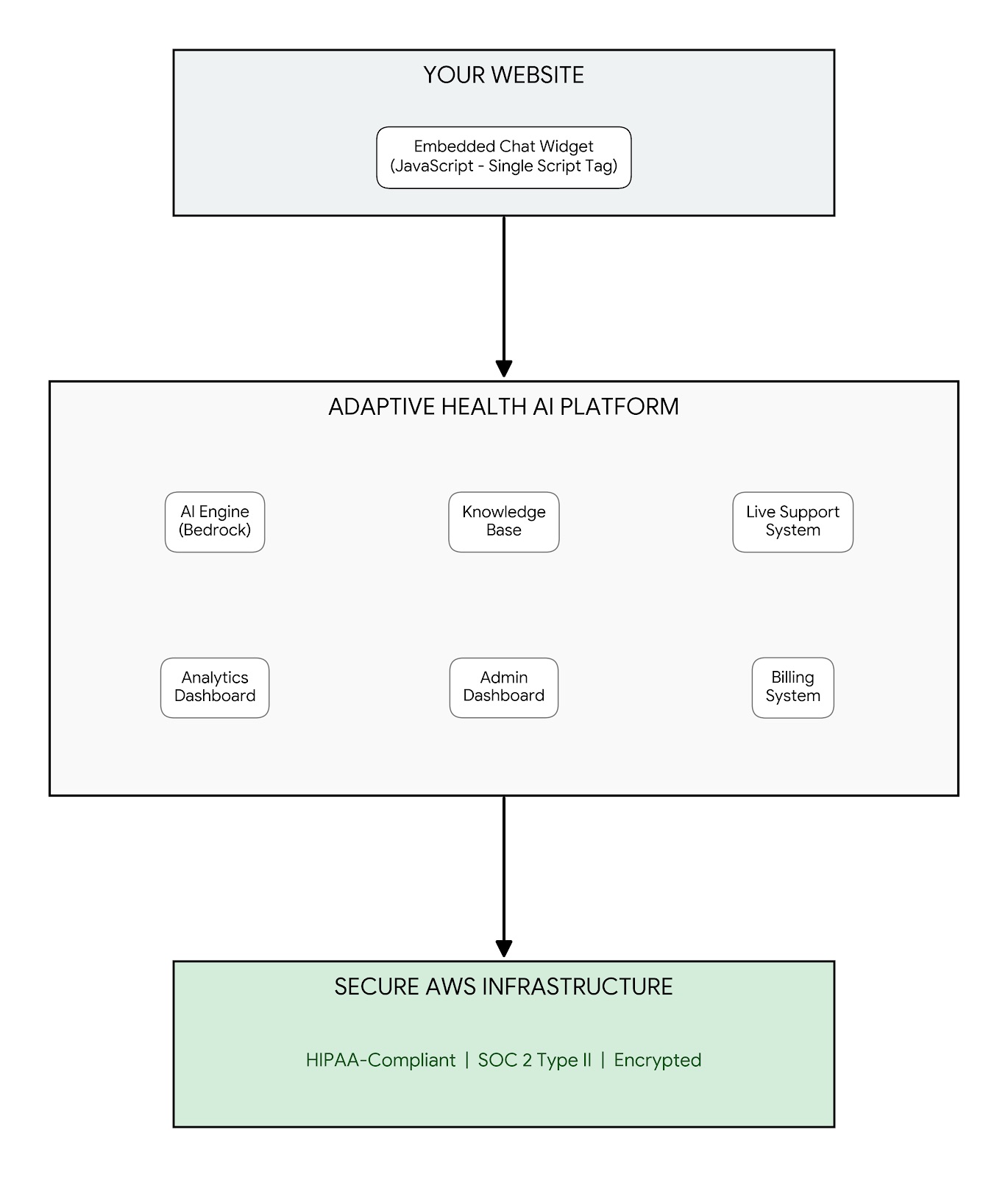
Architecture Overview
!Platform Architecture Diagram
How a Conversation Works
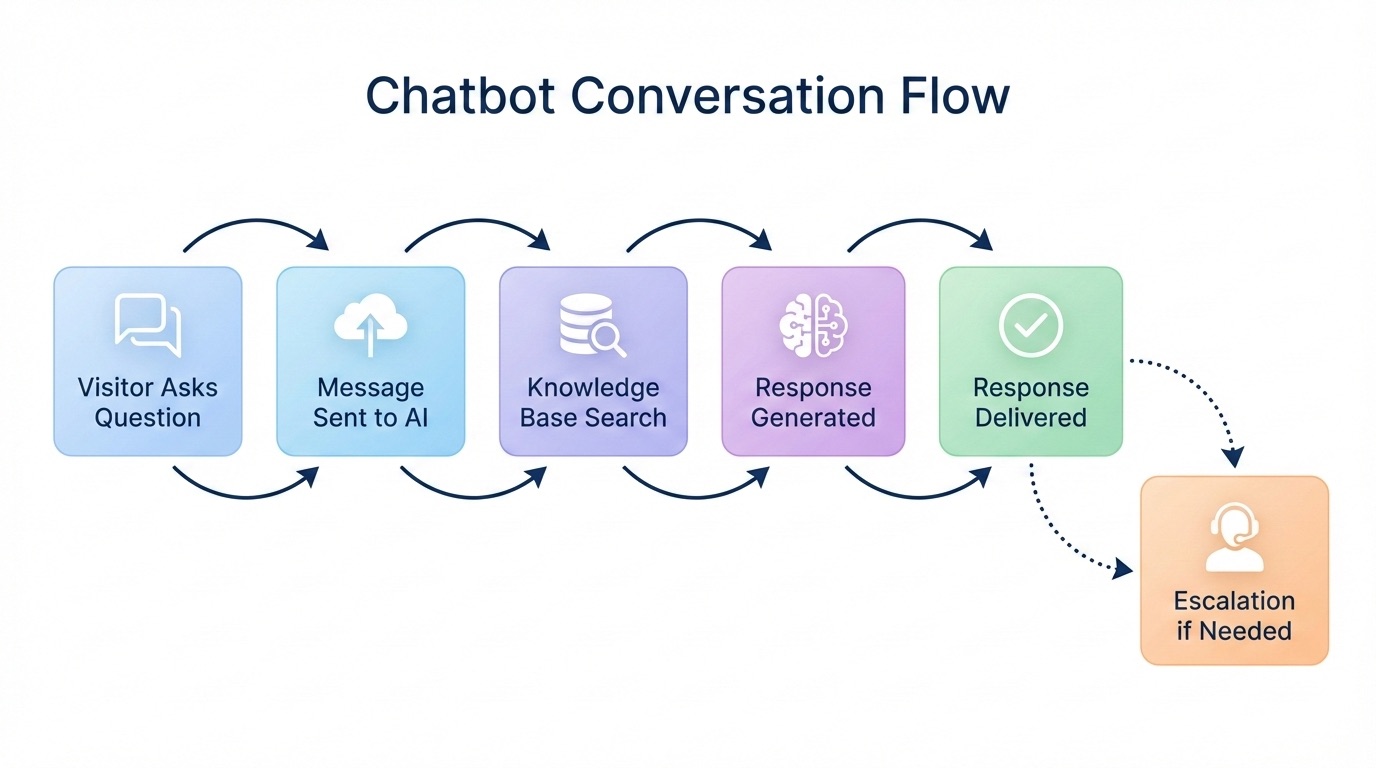
- Visitor asks a question -- The chatbot widget captures the message
- Message sent to the platform -- Securely transmitted to Adaptive Health AI
- Knowledge base search -- The AI searches your trained content for relevant information
- Response generated -- The AI creates a contextual, accurate response
- Response delivered -- The visitor receives the answer in real time
- Escalation if needed -- The visitor can request to speak with a live agent at any time
The Training Process
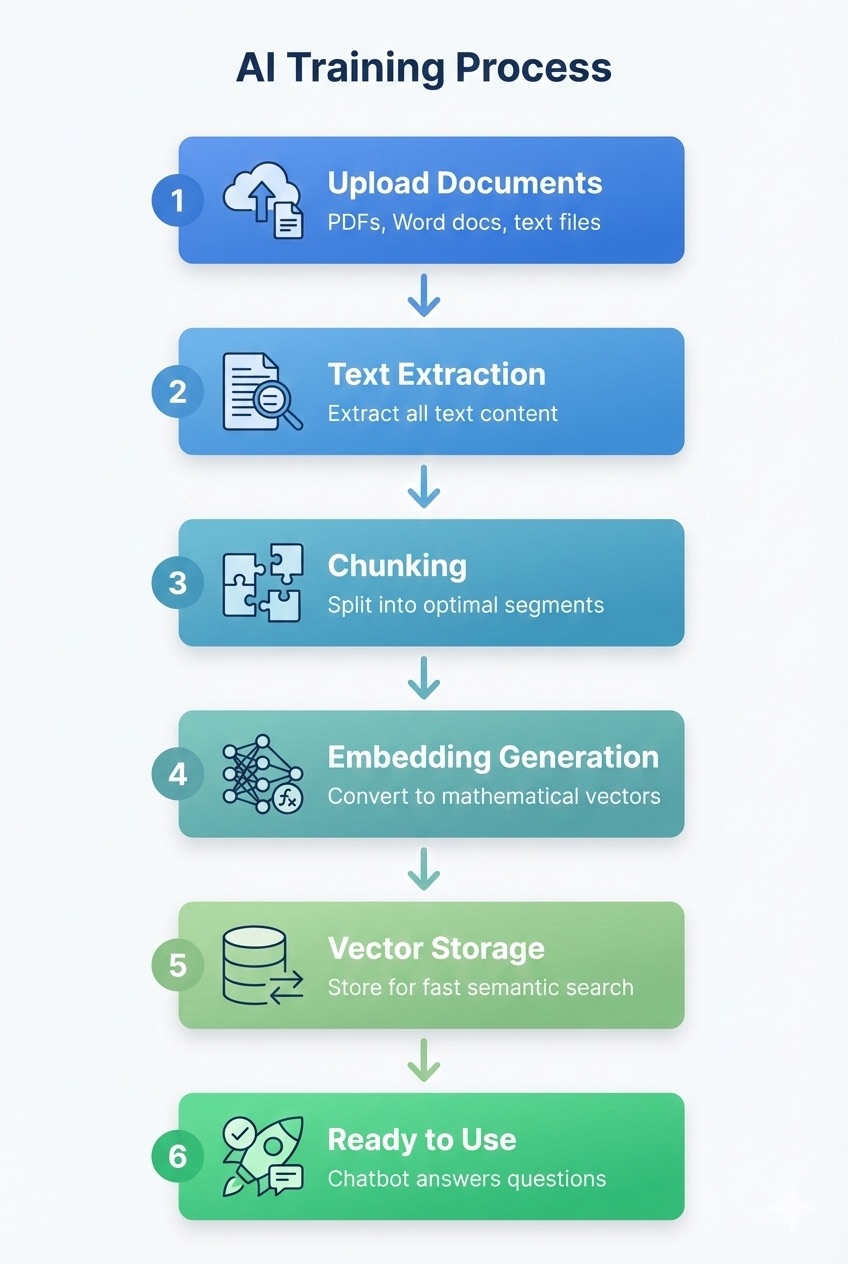
- Upload documents -- PDFs, Word docs, text files, or Markdown files containing your information
- Or crawl your website -- The platform pulls content directly from your existing web pages
- Content is processed -- Your content is prepared for AI-powered search
- Ready to use -- Your chatbot can now answer questions based on your content
---
1.1.4 Use Cases for Healthcare Organizations
Use Case 1: Hospital Patient Services
Challenge: Large hospital receives 500+ calls daily asking about visiting hours, parking, directions, and general policies.
Solution: Deploy a chatbot trained on:
- Visitor policies and hours
- Department locations and directions
- Parking information
- Patient rights and responsibilities
- Billing FAQ
Results:
- Reduced call volume for routine questions
- 24/7 availability for common inquiries
- Staff freed for complex patient needs
Use Case 2: Private Practice Front Desk
Challenge: Small practice with limited staff can't answer phones while checking in patients.
Solution: Deploy a chatbot trained on:
- Office hours and location
- Services offered
- New patient information
- Insurance accepted
- Appointment preparation
Results:
- Virtual front desk assistant
- Lead capture when the office is busy
- After-hours information availability
Use Case 3: Telehealth Technical Support
Challenge: Telehealth provider spends significant time helping patients connect to video visits.
Solution: Deploy a chatbot trained on:
- Technical requirements
- Step-by-step connection instructions
- Troubleshooting common issues
- Browser compatibility
- Mobile app instructions
Results:
- Reduced technical support calls
- Higher appointment completion rates
- Better patient experience
Use Case 4: Mental Health Resource Center
Challenge: Mental health practice needs to provide resources between sessions while maintaining appropriate boundaries.
Solution: Deploy a chatbot trained on:
- Coping strategies and techniques
- Crisis resources and hotlines
- Appointment scheduling information
- General wellness information
- Practice policies
Results:
- 24/7 resource availability
- Appropriate escalation to live agents
- Reduced after-hours calls
Use Case 5: Specialty Surgical Center
Challenge: Patients need detailed pre-operative and post-operative instructions that are often forgotten or lost.
Solution: Deploy a chatbot trained on:
- Pre-operative preparation checklists
- Post-operative care instructions
- Medication guidelines
- What to expect during recovery
- When to contact the office
Results:
- Fewer calls about routine post-op questions
- Patients can access instructions anytime
- Better patient outcomes
---
Getting Started
Ready to create your account? Continue to the next section:
---
Related Pages
Module 1.2: Account Setup
1.2.1 Creating Your Account
Visit the Registration Page
Navigate to adaptivehealthai.com/register to begin the registration process.
Registration is completed in three steps. All required fields must be filled in before you can proceed to the next step.
---
Step 1: Company Information
Provide details about your organization.
| Field | Requirements |
|-------|-------------|
| Company Name | Required |
| Company Website | Required |
| Company Size | Dropdown selection: 1-10, 11-50, 51-200, 201-500, 500+ |
| Industry | Dropdown selection: Healthcare, Technology, Finance, Education, Retail, Other |
---
Step 2: Your Information
Provide your personal contact details.
| Field | Requirements |
|-------|-------------|
| Full Name | Required |
| Email Address | Required, must be a valid email |
| Phone Number | Optional. Includes a country code selector |
| Time Zone | Dropdown selection: Eastern Time (ET), Central Time (CT), Mountain Time (MT), Pacific Time (PT), or UTC |
Tips
- Use your organization's email domain (not a personal email) for easier team management later
- Select the time zone that matches where your team operates so that scheduling and notifications are accurate
---
Step 3: Payment Information
A free trial is included with your registration. Your card will be validated during this step, but you will not be charged during registration. The exact trial length depends on the plan you select and is shown to you during registration. Billing begins automatically when your trial ends.
Visit our pricing page for full details on available plans.
| Field | Requirements |
|-------|-------------|
| Cardholder Name | Required |
| Card Details | Entered through a secure CardPointe iframe that tokenizes your card without exposing the number to the platform. Visa and Mastercard only -- American Express and Discover are not supported |
| Expiration Month / Year | Required |
| Billing Address | Address, City, State, ZIP, Country |
| Terms of Service | Required -- you must agree to proceed |
| Privacy Policy | Required -- you must agree to proceed |
| Marketing Emails | Optional -- opt in to receive product updates and tips |
Click "Complete Registration" to submit your registration.
Note: There are no password fields during registration. The platform sends you a temporary credential after registration; on your first sign-in, the system prompts you through a password change dialog before continuing to the dashboard.
---
1.2.2 Email Verification
Why Verification is Required
Email verification ensures:
- Your email address is valid and accessible
- Only authorized users can create accounts
- Important notifications reach you
- Account recovery is possible
Verification Process
Step 1: Check Your Inbox
After registration, check your email for a message from Adaptive Health AI with the subject line "Verify Your Email Address."
Step 2: Click the Verification Link
The email contains a verification button or link that says "Verify Email". Click it to confirm your email address.
Step 3: Confirmation
You will be redirected to the platform with a confirmation that your email is verified. You can now log in for the first time.
Troubleshooting Email Verification
| Issue | Solution |
|-------|----------|
| Email not received | Check your spam or junk folder |
| Email in spam | Mark as "not spam" and add our address to your contacts |
| Link expired | Request a new verification email from the login page |
| Wrong email entered | Contact support at support@adaptivetelehealth.com |
Resending Verification Email
If your verification email did not arrive or expired, contact support at support@adaptivetelehealth.com and we will send a new one.
---
1.2.3 Legal Agreements
Required Agreements
During registration (Step 3), you must accept the following:
Terms of Service
The Terms of Service outline:
- Acceptable use of the platform
- Your responsibilities as a user
- Our responsibilities as a provider
- Intellectual property rights
- Limitation of liability
- Termination conditions
Privacy Policy
The Privacy Policy explains:
- What data we collect
- How we use your data
- How we protect your data
- Your data rights
- Cookie usage
- Third-party services
For more details, see Privacy & GDPR.
Viewing Agreements Later
You can review the agreements at any time:
- Terms of Service: adaptivehealthai.com/terms
- Privacy Policy: adaptivehealthai.com/privacy
Agreement Updates
When we update our legal documents:
- You will be notified via email
- You will see the updated terms on your next login
- Continued use requires acceptance of new terms
---
1.2.4 Dashboard Orientation
First Login
After verifying your email, log in for the first time. If a password change is required for your account, you will be prompted to set a new password before continuing. The First-Time Setup Wizard then walks you through creating and training your first chatbot. The wizard does not include a password step or a plan-selection step -- your subscription is selected during registration. See Creating Your First Chatbot for details.
Dashboard Layout
Once you complete the wizard, you land on the main dashboard. The admin portal uses a single top header bar -- there is no left-hand sidebar. Your name appears on the right side of the header and opens a dropdown menu with the rest of the navigation.
The home dashboard surfaces your chatbots, recent activity, and a button to create a new chatbot.
User Menu
Click your name in the top-right corner of the header to open the user menu. The menu contains:
| Option | Description |
|--------|-------------|
| Account | Profile details, password, and notification settings (also where two-factor authentication is configured) |
| Live Support | Visible only when the Live Agent Support add-on is active. Opens the agent dashboard |
| Logout | Sign out of your account |
Depending on your role and permissions, the menu may also include Team Members, Billing & Usage, Audit Logs, and Settings. Roles without those permissions do not see the corresponding entries.
For more on organization settings, see Organization Settings.
Two-Factor Authentication
The Account page includes a two-factor authentication setup option. Enabling 2FA adds an extra verification step at sign-in and is recommended for any account with billing or administrative permissions.
---
1.2.5 Troubleshooting Account Issues
Login Problems
| Issue | Solution |
|-------|----------|
| Forgot password | Use the "Forgot Password" link on the login page |
| Account locked | Contact support at support@adaptivetelehealth.com after multiple failed attempts |
| Session expired | Log in again |
Account Access
| Issue | Solution |
|-------|----------|
| Need to change email | Go to Profile and edit your email (verification required) |
| Multiple organizations | Each organization needs a separate account |
| Transfer ownership | Contact support at support@adaptivetelehealth.com |
Billing Issues
| Issue | Solution |
|-------|----------|
| Payment failed | Update your payment method in Billing settings |
| Wrong plan | Upgrade or downgrade in Billing settings |
| Need invoice | Download from Billing in Payment History |
---
Next Steps
Now that your account is set up, you are ready to create your first chatbot:
1.3 Creating Your First Chatbot
---
Related Pages
Creating Your First Chatbot
This guide walks you through your first login, creating a chatbot, training it, testing it in the Sandbox, and deploying it to your website.
---
First Login
When you log in for the first time after verifying your email, the platform may prompt you to change your password before continuing. This happens through a password change dialog -- there is no separate password step in the chatbot setup wizard.
After you set your password, the First-Time Setup Wizard launches automatically and walks you through creating and training your first chatbot. The wizard does not ask you to choose a plan -- your subscription is selected during registration. See Account Setup for details on registration.
---
Creating a New Chatbot
Open the Chatbots Page
From the dashboard, open the Chatbots page using the top navigation. If this is your first time, the First-Time Setup Wizard guides you through this step automatically.
Click "+ New Chatbot"
On the Chatbots page, click the + New Chatbot button in the top-right corner.
Enter Basic Information
Fill out the chatbot creation form:
| Field | Description | Example |
|-------|-------------|---------|
| Name | A descriptive name for your chatbot | "Patient Services Bot" |
| Description | A brief description of the bot's purpose | "Answers questions about our clinic services, hours, and policies" |
Create the Chatbot
Click Create Chatbot to create your new chatbot. You are taken to the chatbot management page.
Naming Tips
- Use clear, descriptive names
- Include the purpose or department
- Examples: "Main Website Assistant", "Billing FAQ Bot", "New Patient Information", "Telehealth Support"
---
Understanding the Chatbot Management Page
After creating your chatbot, you land on the chatbot management page. The page is organized into tabs that give you access to all chatbot features.
Chatbot Tabs
| Tab | Purpose |
|-----|---------|
| Analytics | View conversation counts, message volume, visitor stats, and response times |
| Leads | View and manage contact information captured from visitors |
| Settings | Configure chatbot behavior, appearance, and advanced features |
| Training | Upload documents and crawl websites to train your chatbot |
| Sandbox | Test your chatbot in a live preview before deploying |
| Conversations | View and review past chat conversations |
| Deploy | Get the embed code to add the chatbot to your website |
Each tab is permission-controlled. Team members only see the tabs their role gives them access to.
---
Uploading Your First Training Content
Training your chatbot with your own content is the most important step. Open the Training tab to get started.
Preparing Your Content
Best content to start with:
- FAQ documents
- Patient information guides
- Office policies
- Service descriptions
- Contact and hours information
Supported file formats:
- PDF (.pdf)
- Microsoft Word (.docx)
- Plain Text (.txt)
- Markdown (.md)
Tips for good training content:
- Clear, well-organized content works best
- Include questions and answers when possible
- Keep content current and accurate
- Maximum file size: 10MB
Uploading a Document
- Open the Training tab on your chatbot management page
- Click Upload Document
- Select a file from your computer
- Wait for processing to complete -- you will see the status change to "Ready"
- Click the Train Bot button to generate the embeddings the chatbot uses to search your content
The Train Bot step is required after every upload or content change. Until you train the bot, the document is stored but the chatbot cannot search it.
For detailed guidance on document management, see Document Management.
Training from Your Website
If your website already contains the information your chatbot needs, you can crawl it instead of uploading documents. The crawler runs in two phases:
- Open the Training tab and choose Crawl Website
- Enter your website URL and start the discovery phase
- The crawler returns a list of pages it found on your site
- Review the list and select which pages should be included in training
- Start the crawl on your selected pages -- the platform extracts the text and prepares it for training
- Click Train Bot when the crawl finishes to generate embeddings
For full crawler details, see Website Crawler.
---
Testing in the Sandbox
Before deploying to your website, test your chatbot using the Sandbox tab.
Accessing the Sandbox
Open the Sandbox tab on your chatbot management page. A chat interface appears that uses the same widget code your visitors will see, with your current settings and training applied.
What to Test
Welcome Message -- Verify your greeting appears correctly and the suggested questions are displayed.
Basic Questions -- Ask questions covered in your training content:
- "What are your hours?"
- "Where are you located?"
- "How do I make an appointment?"
Edge Cases -- Test questions that may not be covered:
- "What's the weather today?"
- "Can you diagnose my symptoms?"
Conversation Flow -- Have a multi-turn conversation to confirm follow-up questions work naturally.
Improving Responses
| Response Quality | Action |
|-----------------|--------|
| Accurate and helpful | Your training content is working well |
| Partially correct | Add more training content on that topic |
| Incorrect | Review your training documents and correct the information |
| "I don't know" | Upload content that covers the topic, then click Train Bot |
| Off-topic | Adjust the chatbot's personality and purpose in Settings |
If specific questions need exact answers, use Q&A Overrides to set a predetermined response. See Q&A Overrides.
---
Deploying to Your Website
When testing is complete, open the Deploy tab to get your embed code.
Getting Your Embed Code
- Open the Deploy tab on your chatbot management page
- The page shows a personalized script snippet that looks like this:
<script
  src="https://widget.adaptivehealthai.com/embed.min.js"
  data-chatbot-id="your-chatbot-id"
  data-api-url="https://api.adaptivehealthai.com"
  async>
</script>
- Click Copy Code to copy the snippet to your clipboard
The actual snippet shown in the Deploy tab is personalized with your chatbot's unique ID and the correct API URL for your environment. Always copy from the Deploy tab rather than typing the snippet by hand.
Adding to Your Website
Paste the script tag just before the closing </body> tag on your website:
<!DOCTYPE html>
<html>
<head>
  <title>Your Website</title>
</head>
<body>
  <!-- Your website content -->
<!-- Adaptive Health AI Chatbot -->
<script
  src="https://widget.adaptivehealthai.com/embed.min.js"
  data-chatbot-id="your-chatbot-id"
  data-api-url="https://api.adaptivehealthai.com"
  async>
</script>
</body>
</html>
```
WordPress
- Install a plugin such as "Insert Headers and Footers"
- Add the script tag to the footer section
- Save and publish
Website Builders (Wix, Squarespace, Shopify)
- Find the "Custom Code" or "Embed" option in your site settings
- Add the script tag to the footer or body section
- Publish your changes
Verifying Deployment
After adding the code to your site:
- Visit your website
- Look for the chat icon in the corner you configured
- Click the icon to open the chat
- Send a test message
- Confirm the response is delivered
Deployment Checklist
- Embed code is added to all pages (or via your site template)
- Chat icon appears correctly
- Widget opens when clicked
- Messages send successfully
- Responses are received
- Suggested questions appear
- Colors match your brand
- Mobile view works correctly
Your site must be served over HTTPS for the widget to load.
---
Quick Start Summary
- Create a chatbot -- Give it a name and description
- Upload one document or crawl your site -- Your FAQ or main information page
- Click Train Bot -- Generate the embeddings the chatbot needs
- Set your welcome message -- A friendly greeting for visitors
- Test in the Sandbox -- Verify responses are accurate
- Deploy -- Copy the snippet from the Deploy tab into your site
---
Troubleshooting First Deployment
Widget Not Appearing
| Issue | Solution |
|-------|----------|
| Script not loading | Verify the embed code is placed before the closing </body> tag |
| Wrong chatbot ID | Copy the code again from the Deploy tab |
| Browser caching | Clear your browser cache and refresh the page |
| JavaScript blocked | Check for browser extensions or script blockers |
| HTTPS required | Your site must use HTTPS for the widget to load |
Chatbot Not Responding
| Issue | Solution |
|-------|----------|
| No training content | Upload at least one document and click Train Bot |
| Document still processing | Wait for the document status to show "Ready" |
| Embeddings not generated | Click Train Bot after uploading or crawling |
| Connection issue | Check your internet connection |
| Chatbot inactive | Make sure the chatbot is set to Active on the management page |
Poor Response Quality
| Issue | Solution |
|-------|----------|
| Irrelevant answers | Add more relevant training content and re-train |
| "I don't know" responses | Upload content that covers those topics |
| Too generic | Create a specific FAQ document with direct questions and answers |
| Outdated information | Update or replace old training documents and re-train |
---
Related Pages
Chatbot Management
Once you create a chatbot, you manage it from a dedicated management page. This guide covers the layout and key areas you will use.
---
Chatbot Header
At the top of the management page, you will see:
- Chatbot Name and Description -- the name and summary you gave your chatbot when you created it
- Chatbot ID -- a unique identifier for your chatbot, used in the embed code as
data-chatbot-id - Active / Inactive Toggle -- a switch to turn your chatbot on or off instantly. The toggle is only enabled for users with
chatbot.editpermission
When your chatbot is Active, it loads on your website and responds to visitors. When it is Inactive, the widget does not appear and visitors cannot start conversations. All your settings, training data, and conversation history are preserved regardless of status.
---
Management Tabs
The management page is organized into tabs. Each tab is permission-controlled, so team members only see the tabs they have access to. The permissions that gate each tab are:
| Tab | Required Permission |
|-----|---------------------|
| Analytics | analytics.view_dashboard |
| Leads | chatbot.view |
| Settings | chatbot.edit |
| Training | chatbot.train or documents.upload |
| Sandbox | chatbot.view |
| Conversations | conversations.view |
| Deploy | chatbot.deploy |
Analytics
View conversation statistics, message volumes, response times, visitor data, topic breakdowns, and charts. Use this tab to understand how visitors interact with your chatbot and identify trends over time.
Leads
View and manage captured visitor information. Filter leads by status or date range, review individual submissions, and export your leads for follow-up in your CRM or other tools.
Settings
Configure your chatbot's AI behavior, widget appearance, lead capture forms, email notifications, conditional buttons, and support hours. This is where you control how your chatbot looks, acts, and communicates.
Training
Upload documents, crawl websites, and manage Q&A Overrides to train your chatbot. Everything your chatbot knows comes from the content you provide in this tab.
Sandbox
Test your chatbot in a live preview environment before deploying it to your website. Use the Sandbox to verify that responses, appearance, and behavior are working as expected.
Conversations
Browse your chatbot's full conversation history. Review individual messages, see how the AI responded, and export transcripts. To create a Q&A Override based on something you noticed in a conversation, copy the question into the Training tab's Q&A Overrides sub-tab and add it there.
Deploy
Get the embed code to add your chatbot to your website. Choose from multiple deployment methods and copy your personalized installation code.
---
Creating Additional Chatbots
You can create multiple chatbots for different purposes, such as:
- Different departments (Billing, Scheduling, General Inquiries)
- Different locations (Main Office, Branch Office)
- Different websites or landing pages
- Different audiences (Customers, Partners, Job Applicants)
To create a new chatbot, click "+ New Chatbot" on the Chatbots page, enter a name and description, and click "Create Chatbot".
---
Deleting a Chatbot
Deleting a chatbot is permanent and cannot be undone. It removes the chatbot and all associated settings, training documents, conversation history, analytics data, and captured leads.
Before deleting, consider:
- Exporting conversations from the Conversations tab
- Downloading documents from the Training tab
- Deactivating the chatbot instead if you may need it later
To delete, click the delete icon on the Chatbots list page and confirm by typing the chatbot name.
---
Best Practices
- Use clear, descriptive names for your chatbots so your team can identify them quickly
- Review conversation quality and analytics on a regular basis
- Test changes in the Sandbox before deploying
- Keep training documents up to date as your business information changes
- Check Q&A Overrides periodically to make sure they are still accurate
---
Related Pages
Widget Appearance
Customize the look and feel of your chatbot widget to match your brand. These settings are found in Settings > Advanced > Widget Appearance.
---
Position
Choose where the chat widget appears on your website:
| Option | Description |
|--------|-------------|
| Bottom Right | The most common placement (industry standard) |
| Bottom Left | Good for sites with other elements in the bottom right |
| Top Right | Upper right corner of the page |
| Top Left | Upper left corner of the page |
---
Theme
Select a visual theme for the widget:
- Light -- White and light gray backgrounds with dark text. Clean and professional.
- Dark -- Dark backgrounds with light text. Modern appearance and easier on the eyes in low-light settings.
- Auto (System) -- The widget follows the visitor's operating-system preference and switches between light and dark automatically.
---
Button Appearance
Customize the floating chat button that visitors click to open the widget:
- Button Color -- Use the color picker to set the button's background color. Choose a color that stands out on your website while matching your brand.
- Button Logo -- Upload a custom image for the button. An image cropper lets you adjust the image after uploading.
- Icon Selection -- Choose from a set of built-in icons if you prefer not to upload a custom image.
---
Header Appearance
Customize the header bar that appears at the top of the open chat window:
- Header Logo -- Upload a custom logo for the header. An image cropper lets you adjust it after uploading.
- Icon Selection -- Choose a built-in icon for the header if you prefer not to upload a logo.
The header background uses the same color as the Button Color. When you change the primary/button color, the header color updates to match. There is no separate header color picker -- a single primary color drives both surfaces, which keeps the widget visually consistent.
---
Welcome Popup
The welcome popup is a small message that appears near the chat button before a visitor opens the widget, encouraging them to start a conversation.
- Toggle -- Turn the welcome popup on or off
- Popup Message -- Customize the text that appears in the popup
---
Font Settings
Control the typography inside the chat widget:
- Font Family -- Select from available fonts to match your website's typography
- Font Size -- Choose Small (13px), Medium (14px), Large (16px), or Extra Large (18px) to control text size in the widget
Larger font sizes improve readability and accessibility, especially for audiences who may benefit from bigger text.
---
Display Options
The Widget Appearance section also includes a few small display toggles:
- Show Typing Indicator -- Show or hide the animated indicator while the chatbot is preparing its reply. See Widget Behavior for details.
- Show Timestamps -- Show or hide the time next to each message in the conversation.
- Powered By Text -- Override the small "Powered by" line in the widget footer with your own text, or leave it blank to use the default.
---
Suggested Questions
Configure floating bubble questions that appear when a visitor opens the widget. These disappear after the visitor sends their first message. For detailed instructions, see Suggested Questions.
---
Preview and Testing
The Settings page includes a live preview that updates in real time as you make changes. After saving, visit your website to verify the appearance, and test on both desktop and mobile devices.
---
Related Pages
Widget Content
Configure the text content that visitors see when interacting with your chatbot. The Greeting Message lives in the Settings > Basic Information tab. The Message Placeholder and Welcome Popup live in Settings > Advanced > Widget Appearance.
---
Greeting Message
The greeting message is the first message your chatbot displays when a visitor opens the widget. It sets the tone for the conversation and helps visitors understand what the chatbot can help with.
Tips for a Good Greeting
- Keep it to 2-4 sentences
- Introduce the chatbot and mention what it can help with
- End with a prompt or question to encourage the visitor to respond
- Match your organization's voice and tone
Examples
Customer Support:
> Hi there! I'm the virtual assistant for Acme Corp. I can help with product questions, order status, and account information. How can I help you today?
Professional Services:
> Welcome to Smith & Associates. I can answer questions about our services, availability, and pricing. What would you like to know?
General Business:
> Hello! I'm here to help you find what you need. Ask me about our services, hours, or location. What can I help you with?
---
Message Placeholder
The message placeholder is the hint text that appears in the message input field before a visitor starts typing. It guides visitors on how to interact with the chatbot. The default is "Type your message...".
Good placeholder text is short and actionable:
- "Type your question here..."
- "Ask me anything..."
- "How can I help you today?"
Keep it under 50 characters so it displays well on all screen sizes. The placeholder lives in the same Display Options panel as the typing indicator and timestamp toggles.
---
Welcome Popup
The welcome popup is the small message that appears next to the chat button before a visitor opens the widget. It draws attention and encourages visitors to start a conversation.
- Toggle -- Turn the popup on or off
- Popup Message -- Set the text that appears in the popup. By default, this field mirrors your Greeting Message -- editing the greeting also updates the popup message. To use different text in each, save the greeting first, then edit the popup message field separately
- Popup Delay -- The amount of time (in milliseconds) the page waits before showing the popup. Default: 3000 ms (3 seconds). See Widget Behavior for guidance on choosing a delay
The popup appears while the widget is closed; the greeting message appears after the visitor opens the widget.
For more on how AI behavior and response quality work, see AI Behavior & Guardrails.
---
Related Pages
Suggested Questions
Suggested questions are pre-written prompts that appear as floating bubbles when a visitor opens the chat widget. They help visitors start a conversation quickly without needing to type a question from scratch.
---
How Suggested Questions Work
When a visitor opens the widget, the suggested questions appear as animated floating bubbles above the message input area. Each bubble is click-to-send -- tapping a bubble submits that question through the same flow as if the visitor had typed it.
The bubbles disappear after the visitor sends their first message -- whether they click a bubble or type their own question. Until then, the bubbles remain visible each time the widget is opened.
---
Configuring Suggested Questions
Suggested questions are managed in Settings > Basic Information, in the Suggested Questions section.
Adding a Question
- Open the Settings tab and stay on Basic Information
- Find the Suggested Questions section
- Click the button to add a new question
- Type the question text in the input field
- Repeat for additional questions
- Save your changes
Editing or Removing Questions
- Click on an existing question's text field to edit its text
- Use the delete button next to a question to remove it
The order of the questions in the list is the order they appear in the widget; to change the order, delete and re-add them in the order you want.
How Many to Add
You can add up to five suggested questions. Three is a good baseline -- enough variety to give visitors options without crowding the chat surface. Aim for a mix of topics that reflect the most common reasons visitors come to your site.
---
Writing Good Suggested Questions
The best suggested questions are:
- Short -- Keep them under 50 characters so they fit comfortably in the bubbles
- Natural -- Phrase them the way a real person would ask (e.g., "What are your hours?" rather than "Hours of operation")
- Varied -- Cover different topics so different types of visitors find something relevant
- Answerable -- Only suggest questions your chatbot is trained to answer well
Examples
- "What services do you offer?"
- "How do I schedule an appointment?"
- "What are your hours?"
- "Where are you located?"
- "Do you offer free consultations?"
---
Testing and Improving
After adding suggested questions, test them in the Sandbox to make sure your chatbot gives good answers for each one. Check your analytics periodically to see which questions visitors click most often, and update your suggestions based on what you learn.
---
Related Pages
Widget Behavior
Configure how your chatbot widget behaves during a conversation. These settings are found in Settings > Advanced > Widget Appearance under the Display Options section.
---
Typing Indicator
The typing indicator is the small animation that appears while the chatbot is preparing its next message. It tells visitors that a response is on the way.
- Toggle -- Turn the typing indicator on or off
- When enabled -- Visitors see an animated indicator between sending their message and receiving the chatbot's response
- When disabled -- The indicator is hidden and the response simply appears when ready
Most chatbots leave the typing indicator on. Turning it off can make the widget feel unresponsive on slower replies, so only disable it if you have a specific reason to.
---
Message Timestamps
The message timestamp setting controls whether each message in the conversation displays the time it was sent.
- Toggle -- Turn message timestamps on or off
- When enabled -- A timestamp appears next to each message in the conversation
- When disabled -- Messages display without time information
Timestamps are useful when conversations may be reviewed later or when visitors want a clear record of when each response was delivered. Many widgets keep them off for a cleaner, less cluttered chat surface.
---
Welcome Popup Delay
The welcome popup is the small message bubble that appears next to the chat button before a visitor opens the widget. The popup delay controls how long the page waits before showing it.
- Default -- 3000 milliseconds (3 seconds)
- Configuration -- Enter the delay in milliseconds in the popup delay field
A short delay (1000-3000 ms) gives visitors a moment to scan the page before the popup draws their attention. A longer delay (5000-10000 ms) is less intrusive on content-heavy pages. Pair the delay with the popup message itself, which is configured in Widget Content.
The welcome popup itself can also be turned on or off from the same settings panel. When the popup is disabled, the delay value is ignored.
---
Where to Find These Settings
All three behavior options live in the same place:
- Open your chatbot's management page
- Open the Settings tab
- Open the Advanced sub-tab
- Scroll to the Widget Appearance section, Display Options
These are toggles and a single delay field -- there are no other behavior options in the admin UI today.
---
Related Pages
Business Information
Provide your organization's key details so your chatbot can reference them in conversations. These settings are found in Settings > Advanced.
---
Business Details
Business Phone
Enter your main contact phone number. When visitors ask how to reach you by phone, the chatbot can provide this number in its responses.
Business Address
Enter your physical address. The chatbot uses this when visitors ask about your location or need directions.
Scheduling/Booking URL
Enter the URL to your online scheduling or appointment booking system. When visitors ask about scheduling, the chatbot can direct them to this link.
Note: There is no separate "Business Name" field on this panel. The chatbot uses its own Name (set when you created it) and your organization's name from your account record. If you want a different name to appear in conversations, set the chatbot's Name in Settings > Basic Information.
---
Support Hours Scheduling
Support Hours Scheduling controls the availability of the Live Agent Support add-on. The fields in this panel start with humansupport* and only have an effect when Live Agent Support is purchased and enabled. They do not change the AI chatbot's own availability -- the chatbot itself responds 24/7 regardless of these settings.
Master Toggle
Turn Support Hours Scheduling on or off. When disabled, your chatbot operates the same way at all times. When enabled, the chatbot follows the schedule you configure below.
Timezone
Select the timezone your business operates in. The schedule you set is based on this timezone, and the chatbot adjusts its behavior accordingly for visitors in different locations.
Weekly Schedule
Set your available hours for each day of the week (Monday through Sunday). For each day, you can:
- Toggle the day on or off (open or closed)
- Set a start time and end time
For example, you might set Monday through Friday from 9:00 AM to 5:00 PM, Saturday from 10:00 AM to 2:00 PM, and Sunday as closed.
Offline Message
Enter the message visitors see when they contact your chatbot outside of your scheduled hours. For example: "We are currently offline. Our support hours are Monday-Friday, 9 AM - 5 PM EST."
Offline Behavior
Choose what happens with the live support option when visitors reach your chatbot outside of support hours:
- Allow offline message form -- Visitors can fill out a contact form to leave a message for your team
- Show message only -- Display the offline message without a form
- Hide live chat option completely -- The live support button is hidden, but the AI chatbot continues to respond
"All Agents Offline" Message
Set a custom message that appears when no agents are currently available, even during support hours. This is a separate message from the off-hours Offline Message above. Use it to acknowledge that the visitor has reached your team during normal hours but no one is online right now.
Queue Message Placeholders
When a visitor is waiting in the live support queue, the queue message can include two placeholders that the platform fills in automatically:
#{position}-- The visitor's current position in the queue#{wait_time}-- The estimated wait time before an agent picks up
For example: "You are number #{position} in line. Estimated wait: #{wait_time}."
---
How Business Information Appears in Conversations
When you fill in your business details, the chatbot can naturally incorporate them into responses. For example:
Visitor: "What are your hours?"
Chatbot: "We are open Monday through Friday from 9:00 AM to 5:00 PM and Saturday from 10:00 AM to 2:00 PM. We are closed on Sundays."
Visitor: "How do I book an appointment?"
Chatbot: "You can schedule an appointment through our online booking page. Would you like the link?"
For the best results, also include your business details in your training documents so the chatbot has multiple sources of accurate information.
---
Related Pages
Lead Capture Form
Collect contact information from visitors through a form displayed inside the chat widget. These settings are found in Settings > Advanced > Lead Capture Form & Settings.
---
Enabling the Form
Use the master toggle to turn the lead capture form on or off. When enabled, the form appears at the timing you choose (see Form Display Timing below). When disabled, the form does not appear.
---
Customizing Form Text
Form Title
Set the heading that appears at the top of the form. The default is "Get Started". You can change it to something like "Get in Touch" or "Contact Us."
Form Description
Add a short description below the title to explain why visitors should fill out the form. The default is "Please provide your information to begin". Customize it to match your tone, for example: "Leave your details and we will get back to you shortly."
Button Text
Change the text on the submit button. The default is "Start Chat". You can customize it to "Send", "Get Started", or any other call to action that fits your form.
The submit button uses your widget's primary/button color, which is configured under Widget Appearance. There is no separate color setting for the lead capture form button.
---
Configuring Form Fields
The lead capture form includes the following fields. For each field, you can configure:
- Enabled -- Toggle whether the field appears on the form
- Required -- Toggle whether the field must be filled in before the visitor can submit
- Label -- The text label shown above the field
- Placeholder -- The hint text shown inside the empty field
Available Fields
| Field | Description |
|-------|-------------|
| Name | Visitor's name |
| Email | Visitor's email address |
| Phone | Visitor's phone number |
| Company | Visitor's company or organization |
| State | A dropdown selector for the visitor's state |
Start with the essentials -- Name and Email as required fields -- and add optional fields based on what information you need for follow-up.
---
Form Display Timing
The lead capture form has two timing options that control when the form is shown during the chat experience. These are timing options, not visual placement.
| Timing | Description |
|--------|-------------|
| After First Message (default, recommended) | The form appears after the visitor sends their first message. This lets the visitor experience the chatbot before being asked for contact information |
| Before Chat | The form appears immediately when the widget opens, before any chat interaction. The visitor must complete the form before they can chat |
Most installations use After First Message because it lets the chatbot demonstrate value before requesting contact information, which generally produces higher submission rates.
---
Skip and Persistence Options
Allow Skip
Toggle whether visitors can skip the form. When skip is allowed, a "Skip" link appears alongside the submit button so visitors can dismiss the form and continue the conversation without filling it in.
Allowing skip generally improves engagement at the cost of capture rate. Disallowing skip improves capture rate but may cause some visitors to leave.
Persistence Days
Set how many days the platform remembers a visitor who has already submitted the form. During that window, returning visitors are not shown the form again on the same browser. Use this to avoid asking returning visitors for the same information repeatedly.
---
Viewing and Exporting Leads
Submitted leads appear in the Leads tab on your chatbot management page. From there you can:
- Filter leads by status or date range
- Review individual submissions
- Export leads for use in your CRM or follow-up workflows
---
Related Pages
AI Behavior & Guardrails
Control how your chatbot communicates with visitors and what safety boundaries it follows. These settings shape your chatbot's personality, response style, and protective limits.
---
Personality and Purpose
These settings are found in the Settings > Basic Information tab. They define how your chatbot presents itself and interacts with visitors.
Personality
Choose the overall personality your chatbot uses in conversations:
- Professional -- Polished and businesslike
- Friendly -- Warm and approachable
- Casual -- Relaxed and conversational
- Technical -- Precise and detail-oriented
- Empathetic -- Understanding and supportive
Purpose
Select the primary purpose of your chatbot. This helps the AI focus its responses on the right type of assistance:
- Customer Support -- Answering questions and resolving issues
- Sales & Lead Generation -- Engaging visitors and capturing interest
- Information & FAQs -- Providing general information and answering common questions
- Appointments & Bookings -- Helping visitors schedule and manage appointments
- Technical Assistance -- Providing technical help and troubleshooting
- Education & Training -- Sharing educational content and guidance
Response Style
Control how detailed the chatbot's answers are:
- Concise -- Short, direct answers
- Balanced -- A moderate level of detail
- Detailed -- Thorough, in-depth responses
Language Complexity
Set the reading level of responses:
- Simple -- Plain, everyday language
- Moderate -- Standard professional language
- Technical -- Industry-specific terminology
Greeting Style
Choose the tone for the chatbot's initial greeting:
- Friendly -- Warm and welcoming
- Professional -- Businesslike and courteous
- Enthusiastic -- Energetic and upbeat
- Neutral -- Straightforward and calm
Error Handling
When the chatbot cannot answer a question, choose how it responds:
- Apologetic -- Expresses regret and offers alternatives
- Direct -- States clearly that it cannot help with that topic
- Helpful -- Redirects the visitor to other resources or next steps
---
Safety Constraints
Safety constraints are checkboxes that set hard boundaries on what your chatbot will and will not do. Enable the constraints that are important for your organization:
- Never ask for personal data -- Prevents the chatbot from requesting sensitive information like social security numbers, credit card details, or medical record numbers
- Don't provide external links (unless in training data) -- The chatbot will only share links that are included in your training content, avoiding unknown or unverified URLs
- Never make guarantees or promises -- Prevents the chatbot from making commitments on behalf of your organization, such as promising specific outcomes or pricing
- Stay neutral on controversial topics -- The chatbot will avoid taking sides on political, religious, or other sensitive subjects
- Follow HIPAA/GDPR compliance -- Applies privacy-focused behavior, ensuring the chatbot does not collect, store, or disclose protected information
Why Guardrails Matter
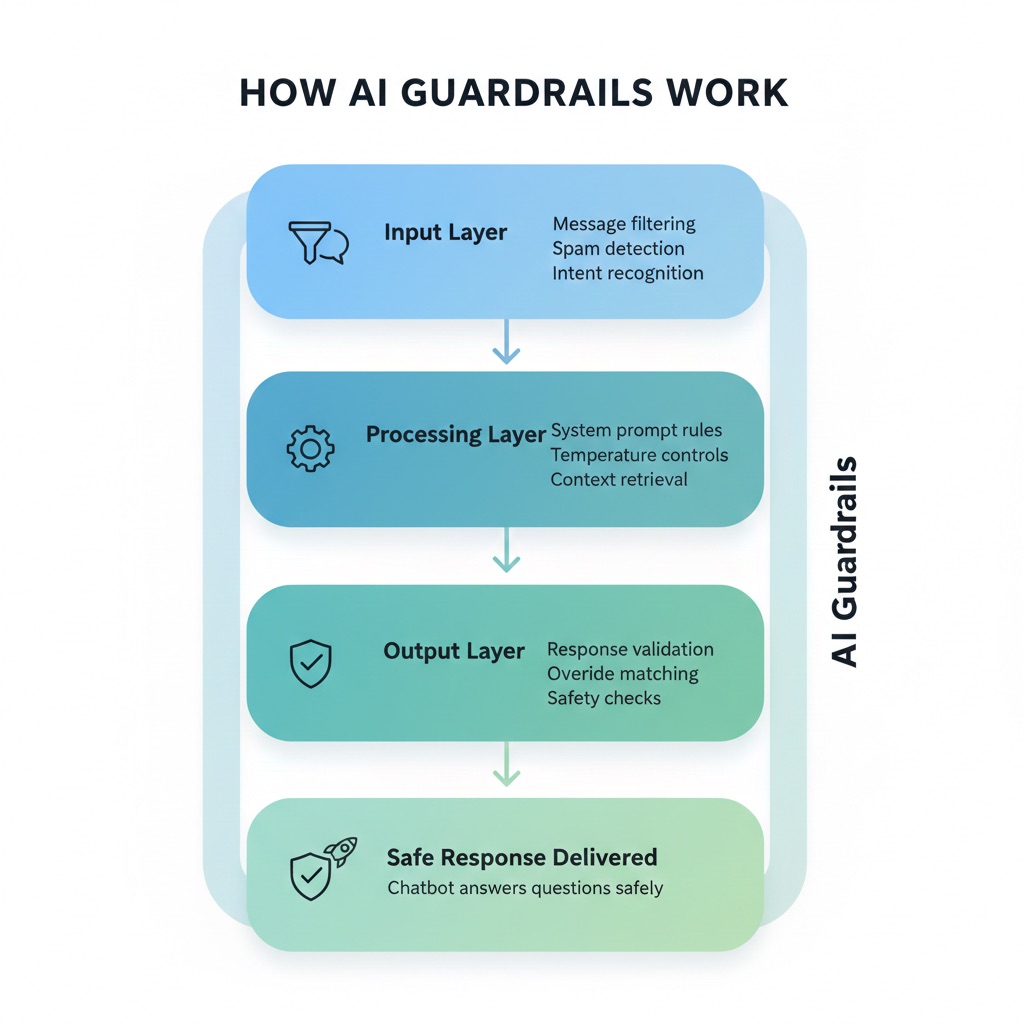
Guardrails protect your organization and your visitors by keeping conversations safe and on-topic. They ensure the chatbot:
- Stays within its scope -- Only answers questions related to your business and training content
- Avoids harmful or inaccurate advice -- Does not provide medical diagnoses, legal opinions, or financial recommendations unless your organization is specifically trained for that
- Protects visitor privacy -- Does not request or store sensitive personal information
- Handles emergencies appropriately -- Directs urgent situations to the right resources (such as suggesting visitors call emergency services or your office directly)
- Maintains compliance -- Follows the regulatory requirements relevant to your industry
---
Application Rules
The Settings page also includes an Application Rules area where you can fine-tune how the chatbot handles specific topics:
- Custom Rules -- Free-text rules the chatbot follows in addition to its personality and purpose. Use this for instructions like "Always confirm the visitor's location before discussing pricing"
- Topics to Handle -- A list of subjects the chatbot should engage with confidently
- Topics to Avoid -- A list of subjects the chatbot should decline to discuss
- Fallback Messages -- Custom responses for common dead-ends, such as when the chatbot cannot find an answer in your training content
These rules are applied alongside Safety Constraints and the prompt the platform builds for you.
---
Advanced Mode and the Prompt Wizard
By default, chatbots use the Prompt Wizard -- the guided experience that takes the personality, purpose, response style, and other choices above and assembles the system prompt for you.
If you need full control, the chatbot can be switched to Advanced Mode, which replaces the wizard with direct prompt editing. Advanced Mode is intended for users who are comfortable writing system prompts by hand and want to tune the chatbot's instructions line by line.
Most organizations should stay with the wizard. Use Advanced Mode only if the wizard cannot express the behavior you need.
---
Related Pages
Q&A Overrides
Q&A Overrides let you define exact answers for specific questions. When a visitor asks a matching question, your custom answer is used instead of the AI-generated response.
---
Where to Find Q&A Overrides
Q&A Overrides are managed in the Training tab under the Q&A Overrides sub-tab.
---
How Overrides Work
- A visitor asks a question
- The system checks the question against each active Q&A Override using the override's match type
- If a match is found, your exact custom answer is delivered instead of an AI-generated response
- If multiple overrides match, the platform uses the one with the highest priority
- If no override matches, the AI generates a response as usual
Match Types
Each override has a match type that controls how the question is compared to the visitor's message:
- Exact -- The visitor's message must match the override question exactly. Best for short, well-defined questions where you want strict matching
- Contains -- The override fires if the visitor's message contains the override question as a substring. Useful for variations of the same question
- Regex -- The override question is treated as a regular expression and tested against the visitor's message. Best for advanced cases where you need flexible patterns
Priority and Multiple Matches
When more than one override matches the same message, the platform uses the override with the higher priority value. The default priority is 10. Raise the priority of overrides that should always win over more general ones, and lower it for overrides you want as a fallback.
Active Toggle
Each override has an Active / Inactive toggle. Inactive overrides are skipped during matching, so you can turn an override off without deleting it -- useful while testing or during seasonal changes.
Semantic Matching
In addition to exact, contains, and regex matching, the platform supports semantic similarity matching for overrides. When configured, the override fires when a visitor's question is semantically similar to the override question, even if the wording is different. Semantic matching is useful for catching paraphrased versions of the same question.
---
Adding an Override
- Go to Training > Q&A Overrides
- Click the button to add a new override
- Enter the question -- Type the question or phrase that should trigger this override
- Choose the match type -- Exact, Contains, or Regex
- Enter the answer -- Type the exact response you want delivered
- Set priority and active state -- Leave the default priority of 10 unless you need fine-grained ordering, and confirm the override is set to Active
- Save your changes
Example
Question: "What is your return policy?"
Answer: "We offer a 30-day return policy on all products. Items must be in original condition with proof of purchase. To start a return, contact us at support@adaptivetelehealth.com or call our office during business hours."
---
Editing and Deleting Overrides
From the Q&A Overrides list, you can:
- Edit an override to update the question or answer
- Delete an override to remove it permanently
Keep your overrides up to date as your business information changes. Outdated overrides can deliver incorrect information to visitors.
---
When to Use Overrides
Q&A Overrides are most useful when:
- A specific answer must be word-perfect -- Legal information, pricing, contact details, or compliance-related responses
- The AI consistently gets something wrong -- Correct a recurring mistake by providing the right answer yourself
- You need exact phrasing -- Marketing messages, brand-specific language, or carefully worded policies
For general topics where the AI handles responses well, training documents are a better approach because they scale more easily. Use overrides for the cases where precision matters most.
---
Related Pages
Deployment
Add your chatbot to your website by copying the embed code from the Deploy tab. The Deploy tab offers three deployment methods plus advanced options.
---
Deployment Methods
Script Tag (Recommended)
The simplest and most common method. A <script> snippet with your chatbot ID and API URL loads the widget on your page.
The snippet looks like this:
<script
src="https://widget.adaptivehealthai.com/embed.min.js"
data-chatbot-id="your-chatbot-id"
data-api-url="https://api.adaptivehealthai.com"
async>
</script>
The two data-* attributes do the work:
data-chatbot-id-- The unique ID of your chatbot, which the widget uses to load your settings and trainingdata-api-url-- The API endpoint the widget connects to. In production this ishttps://api.adaptivehealthai.com
How to install:
- Go to the Deploy tab and select Script Tag
- Copy the provided code snippet
- Open your website's HTML
- Paste the code just before the closing
</body>tag - Save the file and refresh your page
The script loads asynchronously, so it will not slow down your website. Your chatbot widget will appear automatically based on your appearance and position settings.
Note: The embed code shown in the Deploy tab is personalized with your chatbot's unique ID and API URL. Always copy your code directly from the Deploy tab rather than typing it manually -- the URLs differ between environments.
iFrame
Embed your chatbot as an iframe with configurable dimensions and fixed positioning. This method is useful when you want to isolate the chatbot from the rest of your page's styles and scripts.
How to install:
- Go to the Deploy tab and select iFrame
- Copy the provided iframe code
- Paste it into your website's HTML where you want the chatbot to appear
- Adjust the width and height if needed
Popup
Open the chatbot in a separate popup window triggered by a button click. This method is useful when you want the chatbot to open in its own window rather than appear inline on the page.
How to install:
- Go to the Deploy tab and select Popup
- Copy the provided code
- Add it to your website where you want the trigger button to appear
---
Advanced Configuration
The Deploy tab also includes advanced options for more customized integrations:
- Direct Widget Integration -- Once the embed script has loaded, the widget exposes a small JavaScript API on
windowfor programmatic control. The available methods arewidget.open(),widget.close(),widget.toggle(), andwidget.destroy(). Use these to open the widget from your own buttons, close it on a route change, or remove it from the page entirely - Custom iFrame -- A fixed-position iframe template you can embed directly. The default snippet places the iframe in the bottom-right corner of the page using
position: fixed - Delayed Loading -- Insert the embed script after a specified delay or in response to a user action, so the widget is not loaded on every page view
---
Installation Steps
Regardless of which method you choose, the general process is:
- Copy your personalized code from the Deploy tab
- Open your website's HTML file (or template/theme file)
- Paste the code before the closing
</body>tag - Save the file
- Refresh your website to verify the chatbot appears
---
Supported Platforms
Your chatbot works on any website that supports custom HTML and JavaScript, including:
- WordPress -- Add via theme editor, a custom code plugin, or your theme's footer template
- Shopify -- Add to your theme's layout file
- Squarespace -- Use the Code Injection settings
- Wix -- Use the Custom Code section
- Custom HTML sites -- Paste directly into your HTML files
---
Environment and Hosting Requirements
- HTTPS only -- Your site must be served over HTTPS. The widget will not load on plain HTTP pages
- Cross-origin -- The widget loads scripts and connects to
widget.adaptivehealthai.comandapi.adaptivehealthai.com. If your site uses a Content Security Policy, those origins (and a WebSocket connection to the API origin for Live Support) must be allowed inscript-src,connect-src, andframe-srcas appropriate - Production URLs -- In production the embed script is
https://widget.adaptivehealthai.com/embed.min.jsand the API URL ishttps://api.adaptivehealthai.com. The Deploy tab pulls these values from your environment, so always copy from there
---
Testing Your Deployment
After installing the embed code:
- Visit your website and verify the chat widget appears
- Open the widget and send a test message
- Confirm the chatbot responds correctly
- Test on a mobile device to check the layout
- Try different browsers to ensure compatibility
Troubleshooting
If the widget does not appear:
- Confirm the chatbot is set to Active on the management page
- Confirm the embed code is placed before the closing
</body>tag - Look for JavaScript errors in your browser's developer console
- Verify your site is served over HTTPS
If the widget loads but never connects (the chat opens but messages do not send, or Live Support never reaches an agent):
- Check the browser's network tab for blocked requests to
api.adaptivehealthai.com - Check for blocked WebSocket connections, which Live Support relies on
- Verify your Content Security Policy allows the API origin in
connect-src
For help with deployment issues, contact support@adaptivetelehealth.com with your chatbot's Chatbot ID and the URL of the page where you embedded the widget.
---
Related Pages
Understanding Training
Learn how training works to make your chatbot knowledgeable and helpful.
---
What is Chatbot Training?
Training teaches your chatbot about your organization, services, policies, and any information you want it to share with visitors. You provide your content, the AI reads and learns from it, and then uses that knowledge to answer visitor questions in a natural, conversational way.
How Training Works
- You provide content -- Upload documents, crawl your website pages, or define specific Q&A pairs
- The platform prepares your content -- Files and crawled pages are split into searchable chunks and saved against your chatbot
- You click Train Bot -- This is the step that actually makes your content usable. Training generates the embeddings (numeric fingerprints) that let your chatbot search and reference your material
- A visitor asks a question -- When someone interacts with your chatbot, the system searches your trained content for relevant information
- The AI generates a response -- Based on what it found in your content, the AI crafts a natural, conversational answer
The Train Bot Button
Uploading a document or crawling a website does not, by itself, make that content available to your chatbot. New content sits in an "untrained" state until you click the Train Bot button at the top of the Training tab.
When you click Train Bot:
- The platform finds every chunk of content that has not yet been trained
- It generates an embedding for each chunk
- Once embeddings are saved, your chatbot can immediately use that content to answer questions
If anything fails during training, the platform automatically retries up to three times. Failed chunks stay flagged so you can retry them later.
Training Status at a Glance
The Training tab shows a few indicators that tell you where things stand:
- Untrained chunks count -- How many pieces of content are waiting for you to click Train Bot
- Storage Usage bar -- How much of your plan's training character limit has been used
- Training History panel -- A timestamped log of past training runs, including status and event details so you can confirm a training run completed successfully
If your chatbot is not answering questions about content you have already added, the most common cause is that the new content has not been trained yet. Check the untrained chunks count and click Train Bot.
The Training Advantage
| Without Training | With Training |
|------------------|---------------|
| Generic responses | Specific, accurate answers |
| Cannot answer about your services | Knows your services in detail |
| May provide incorrect information | Provides verified information |
| Same response for everyone | Personalized to your organization |
---
The Training Tab
The Training tab is where you manage all of your chatbot's knowledge. It contains three sub-tabs, each offering a different way to provide content to your chatbot.
Documents
Upload files for your chatbot to learn from. Supported formats include PDF, DOCX, TXT, and MD. This is ideal for existing materials like policies, brochures, handouts, and guides.
Learn more in Document Management.
Web Crawler
Crawl your website pages so the chatbot can answer questions about your site content. The crawler uses a two-phase flow: enter a URL to discover the pages on your site, then pick which of those pages to crawl.
Learn more in Website Crawler.
Q&A Overrides
Define exact answers to specific questions. When a visitor asks a question that matches one of your overrides, your predefined answer is used instead of an AI-generated response. This is perfect for critical information that must be exactly right.
Learn more in Q&A Overrides.
---
Types of Training Content
Comparing Training Methods
| Method | Best For | Effort Level |
|--------|----------|--------------|
| Documents | Existing materials like policies, brochures, and guides | Low -- upload your existing files |
| Web Crawler | Website content such as service pages, FAQs, and about pages | Low -- enter a URL and crawl |
| Q&A Overrides | Critical information that needs exact wording (hours, pricing, contact info) | Medium -- write each Q&A pair |
| All combined | Comprehensive coverage across all your content | Medium |
Which Method Should You Use?
Most organizations get the best results by combining all three methods:
- Start with documents and web crawling to give your chatbot a broad base of knowledge
- Add Q&A Overrides for your most critical and frequently asked questions where you need exact answers
- Fill in gaps over time as you review chatbot conversations and identify areas for improvement
---
Training Quality Factors
The quality of your chatbot's responses depends directly on the quality of the content you provide.
Content Quality
| Factor | Impact |
|--------|--------|
| Accuracy | Incorrect content leads to wrong answers |
| Completeness | Missing information means unanswered questions |
| Clarity | Unclear content produces unclear responses |
| Currency | Outdated content gives outdated answers |
Coverage
| Factor | Impact |
|--------|--------|
| Topic breadth | More topics covered means more questions answered |
| Specificity | Detailed content enables detailed answers |
| Consistency | Contradictory content can confuse responses |
Quality Checklist
- [ ] Content is accurate and up to date
- [ ] All major topics are covered
- [ ] Information is clearly written
- [ ] No duplicate or conflicting information
- [ ] Critical questions have Q&A Overrides with exact answers
---
Related Pages
Document Management
Upload, organize, and manage the documents that train your chatbot.
---
Accessing Document Management
- Go to your chatbot's management page
- Click the Training tab
- Select the Documents sub-tab
---
Uploading Documents
How to Upload
The Documents sub-tab features a drag-and-drop upload area at the top of the page. You can either:
- Drag and drop files directly from your computer into the upload area
- Click to browse and select files from your computer
Multiple files can be uploaded at once.
Supported File Formats
| Format | Extension | Best For |
|--------|-----------|----------|
| PDF | .pdf | Policies, brochures, forms, handouts |
| Word | .docx | Guidelines, procedures, manuals |
| Text | .txt | Simple content, lists, notes |
| Markdown | .md | Structured documentation |
File Size Limit
The maximum file size is 10 MB per file.
Training Character Limit
Each plan includes a maximum number of training characters across all of your content (uploaded documents plus crawled pages). When you upload a file, the platform checks whether adding it would push you over the limit. If it would, the upload is rejected with a "training character limit reached" message.
If you hit the limit:
- Delete older or unused documents to free up space
- Remove crawled pages you no longer need
- Upgrade your plan for a higher limit
The Storage Usage bar at the top of the Training tab shows how much of your limit has been used.
---
Document List
After uploading, your documents appear in a list. Each document displays the following information:
| Column | Description |
|--------|-------------|
| Document name | The name of the uploaded file |
| File type | The format of the file (PDF, DOCX, TXT, MD) |
| File size | How large the file is |
| Status | Current processing state (see below) |
| Upload date | When the file was uploaded |
| Actions | Download or delete the document |
---
Document Processing
Two Steps: Upload and Train
Uploading a document is not the same as making it usable by your chatbot. There are two distinct steps:
- Upload and prepare -- The platform receives your file, extracts the text, and splits it into searchable chunks. The document list refreshes automatically every few seconds while this is happening.
- Train Bot -- Click the Train Bot button at the top of the Training tab to generate the embeddings for any chunks that have not been trained yet. Until you do this, your chatbot cannot search or reference the new content.
If your chatbot is not answering questions about a document you have already uploaded, check whether you have clicked Train Bot since the upload.
Processing Status
Each document shows a status indicator so you know where it stands:
| Status | Meaning |
|--------|---------|
| Uploaded | File received and queued for processing |
| Processing | Content is being read and split into chunks |
| Ready to Train | Chunks have been created -- click Train Bot to generate embeddings |
| Trained / Ready / Completed | Chunks are trained and available to your chatbot |
| Failed | Something went wrong during processing |
The Trained, Ready, and Completed states all mean the same thing in practice: the document is fully trained and your chatbot can use it. The platform shows them as a single green status in the document list.
Training Progress and Storage Usage
A progress bar at the top of the Training tab shows the overall training status across all your documents. A separate Storage Usage bar shows how much of your plan's training character limit has been used.
Retrying Failed Chunks
If individual chunks fail during training, the platform automatically retries up to three times. After that, failed chunks remain flagged so you can address them. Use the Retry Failed Chunks action to re-run training only on the chunks that did not succeed -- this is faster than retraining everything.
Reset All Training Data
The Reset All Training Data action removes all chunks and embeddings for the chatbot. Use this if you want to start training over from scratch. Your original uploaded files and crawled URLs remain in place, so you can re-train without re-uploading.
Failed Documents
If a document itself fails to process:
- Check that the file is not corrupted or password-protected
- Verify the file is in a supported format (PDF, DOCX, TXT, MD)
- Make sure the file is under the 10 MB size limit
- Try re-uploading the document
If the problem persists, contact support at support@adaptivetelehealth.com.
---
Managing Documents
Downloading Documents
Click the download action on any document to save a copy of the original uploaded file to your computer.
Deleting Documents
To remove a document from your chatbot's training:
- Find the document in the list
- Click the delete action
- Confirm the deletion when prompted
Once deleted, your chatbot will no longer use that document's content when answering questions. Deletion is permanent -- keep local copies of important files in case you need to re-upload them later.
Refreshing the Document List
The document list auto-refreshes every few seconds while documents are being processed or trained, so you typically do not need to refresh manually. A manual refresh option is also available if you want an immediate update.
Training History
The Training History panel shows a timestamped log of past training runs. For each entry you can see:
- When the run started and finished
- A status badge indicating success or failure
- Event details that explain what was processed and any issues encountered
Use this panel to confirm that a training run finished successfully, or to investigate if something did not work as expected.
---
Keeping Your Content Up to Date
Updating Documents
When your content changes, update your chatbot's training by:
- Deleting the outdated document
- Uploading the new version
- Clicking Train Bot so the new content is searchable
Signs of Outdated Content
Review your documents if any of the following have changed:
- Business hours or location
- Services offered
- Contact information
- Pricing or policies
- Staff or team details
Organization Tips
- Use clear, descriptive file names so you can easily identify each document
- Remove outdated documents promptly to avoid incorrect answers
- Consolidate overlapping content into single documents when possible
- Review your document list regularly to keep it current
---
Related Pages
Q&A Overrides
Define exact answers to specific questions for precise control over your chatbot's responses.
---
Accessing Q&A Overrides
- Go to your chatbot's management page
- Click the Training tab
- Select the Q&A Overrides sub-tab
---
What are Q&A Overrides?
Q&A Overrides let you define your own answers for specific questions. When a visitor asks a question that matches one of your overrides, your predefined answer is used instead of an AI-generated response.
This gives you precise control over how your chatbot responds to particular questions.
How Matching Works
Each override has a match type that controls how the visitor's question is compared to the override question. The default is Contains, which is what most users want.
| Match Type | Behavior |
|------------|----------|
| Contains (default) | Triggers if the visitor's question contains the override question as a phrase. Best for catching variations of the same question. |
| Exact | Triggers only when the visitor's question matches the override question word-for-word. Use this when you need very tight control. |
| Regex | Triggers when the visitor's question matches a regular expression pattern. Use this for advanced matching where Contains and Exact are not flexible enough. |
Because Contains is the default, an override with the question "insurance" will fire on visitor questions like "Do you accept insurance?", "What insurance do you take?", and "Is insurance required?". If you only want it to fire on a specific phrasing, switch the match type to Exact, or write a more specific override question.
---
When to Use Q&A Overrides
Q&A Overrides are ideal for situations where you need precise, consistent answers:
- Critical information that must be exactly right -- Pricing, business hours, phone numbers, addresses
- Frequently asked questions -- Common questions where you want a specific, consistent answer every time
- Questions where the AI may not have enough training data -- Topics not well covered by your documents or website content
- Legal or compliance-related questions -- Answers that require precise wording for regulatory reasons
- Correcting AI responses -- When you notice the chatbot giving an answer you want to improve
---
Adding a Q&A Override
- Click the "Add Override" button
- Enter the question -- Type the question as a visitor might ask it
- Enter the answer -- Type the exact answer you want displayed when this question is asked
- Click Save
New overrides are created with the Contains match type and a default Priority of 10. You can change either of these later -- see Managing Overrides below.
Example
Question:
```
What are your office hours?
```
Answer:
```
We are open Monday through Friday from 8:00 AM to 5:00 PM,
and Saturday from 9:00 AM to 12:00 PM. We are closed on Sundays
and major holidays.
```
---
Managing Overrides
Viewing Overrides
All of your Q&A Overrides are displayed in a list. Each entry shows:
- The question and answer text
- The match type (Exact, Contains, or Regex)
- The priority (a number -- higher priorities are checked first)
- Whether the override is active or inactive
Priority
Priority is an integer that controls the order in which overrides are evaluated when more than one could match the same question. Higher numbers are checked first. The default priority is 10.
If you have a general override (for example, on the word "hours") and a more specific one (for example, "weekend hours"), give the specific override a higher priority so it is checked first.
Activate or Deactivate
Each override has an active toggle. Deactivating an override stops it from firing without deleting it -- a useful alternative when you want to pause an override temporarily, or keep its history for reference.
- Active -- The override is in effect and will be matched against visitor questions
- Inactive -- The override is ignored, and the chatbot answers using AI as if the override did not exist
Editing an Override
To change an existing override:
- Find the override in the list
- Click the edit action
- Modify the question, answer, match type, or priority
- Save your changes
Deleting an Override
To remove an override you no longer need:
- Find the override in the list
- Click the delete action
- Confirm the deletion
Once deleted, the chatbot will go back to generating AI-based responses for that question. If you might want the override back later, consider deactivating it instead of deleting -- it preserves the history and can be reactivated with one click.
---
Creating Overrides from Conversations
You can also create Q&A Overrides directly from the Conversations tab. This is useful when you review a chatbot conversation and spot a response you want to improve.
- Go to the Conversations tab
- Find a conversation where the AI gave a response you want to change
- Click the Edit response to create Q&A override button on the AI's response
- Modify the response text to what you want the answer to be
- Save -- this automatically creates a Q&A Override
Overrides created this way use the default Contains match type and the default priority of 10. You can fine-tune them later from the Q&A Overrides tab. The next time a visitor asks a similar question, your corrected answer will be used.
---
Q&A Overrides vs. Document Training
Both Q&A Overrides and document training help your chatbot answer questions, but they serve different purposes:
Use Q&A Overrides When:
- The answer must be exact and consistent every time
- The information is critical (pricing, hours, contact details, policies)
- You want to correct or improve a specific AI response
- The question is a common FAQ with a specific answer
Use Document Training When:
- The topic is broad and can be phrased many different ways
- You have detailed content that covers the subject thoroughly
- You want the AI to synthesize information from multiple sources
- The answer may vary depending on how the question is asked
Using Both Together
For the best results, use document training to give your chatbot broad knowledge, and add Q&A Overrides for your most important questions. This way, your chatbot has a strong foundation of knowledge while also delivering precise answers where it matters most.
---
Tips for Writing Good Q&A Overrides
- Write questions the way your visitors would ask them -- Use natural, everyday language
- Keep answers clear and concise -- Provide the essential information without overwhelming the reader
- Include helpful details -- Phone numbers, links, next steps, or anything that helps the visitor take action
- Review and update regularly -- Make sure your overrides reflect current information
Example: Good Override
Question: What insurance do you accept?
Answer: We accept most major insurance plans including Blue Cross, Aetna, UnitedHealthcare, Cigna, and Medicare. We also offer self-pay options. Contact our billing department at (555) 123-4567 to verify your specific coverage.
Example: Override That Needs Improvement
Question: Insurance?
Answer: Yes.
This is too vague to be helpful. A visitor asking about insurance likely wants to know which plans you accept and how to verify their coverage.
---
Related Pages
Website Crawler
Train your chatbot using content from your existing website pages. The crawler uses a two-phase workflow: first it discovers the pages on your site, then you choose which of those pages to actually crawl and add to your training data.
---
Accessing the Web Crawler
- Go to your chatbot's management page.
- Click the Training tab.
- Select the Web Crawler sub-tab.
---
How the Crawler Works
The crawler is split into two phases so you stay in control of what your chatbot learns from:
- Discover Pages -- You enter a starting URL. The crawler scans your site, follows internal links, and returns a list of pages it found.
- Select Pages -- You review the discovered URLs in a checkbox list, search and filter them, and pick the ones you want to train on.
- Crawl Selected Pages -- The system fetches and processes only the pages you selected. None of the unselected pages are added to your training data.
This means a discovery run is safe and read-only -- nothing is added to your chatbot until you explicitly start the crawl on selected pages.
---
Phase 1: Discover Pages
Enter Your Starting URL
Type the URL where the crawler should begin. The crawler will follow internal links from this page to map out your site.
For example: https://www.yourwebsite.com or https://www.yourwebsite.com/services
Optional: Form Login
If parts of your site require a login, expand the authentication section and provide form-login details. This is the only authentication option available, and it works with most standard login forms.
| Field | Description |
|-------|-------------|
| Login Page URL | The address of your login page (the page that contains the login form) |
| Username | The username the crawler should sign in with |
| Password | The password the crawler should sign in with |
Form fields and CSRF tokens are detected automatically -- you do not need to specify field names or hidden token values. The crawler reads the login form, fills in the credentials, submits it, and reuses the resulting session for the rest of the crawl.
Start Discovery
Click Discover Pages to begin. A progress indicator shows discovery status as the crawler walks your site.
The crawler respects your robots.txt file and will skip any paths your site has marked as disallowed.
Discovery Limits
To keep discovery fast and predictable, every run is capped at 500 pages scanned. If your site is larger than that, start discovery from a more specific section URL (for example, /blog or /services) to focus the scan on what matters most.
---
Phase 2: Select Pages to Crawl
When discovery finishes, the discovered URLs appear as a checkbox list.
Reviewing the List
For each URL you can see the path and a status indicator. You can:
- Search the list to jump to specific pages
- Filter to narrow the list
- Select all or Clear selection to manage large lists quickly
- Check or uncheck individual URLs to fine-tune your selection
Storage Usage
A storage usage bar is shown above the selection list. It reflects how much of your plan's training character limit has already been used. As you select pages, keep an eye on this bar -- the crawl will stop processing additional pages once the limit is reached, even if more pages remain selected.
Start the Crawl
When you are happy with your selection, click Start Crawling (N pages). The crawler fetches and processes only the URLs you selected.
A single crawl run is limited to 500 selected URLs. The platform also limits the number of crawls that can run at the same time across all chatbots, so if you start a crawl while another is already running you may see a "crawl in progress" notice -- wait for the running crawl to finish, then try again.
---
After the Crawl
Reviewing Crawled Pages
When the crawl completes, the crawled URLs appear in your training data alongside any documents you have uploaded. Each URL shows its processing status so you can see what is ready and what still needs training.
Train Your Chatbot
Crawled pages are not yet usable by your chatbot until you train them. Click the Train Bot button to generate the embeddings that let your chatbot search and reference the crawled content. See Understanding Training for details on how training works.
Removing Unwanted Pages
If a crawled page is not useful for your chatbot, you can delete it individually from the list. You can also use Clear untrained documents to remove all crawled pages and uploaded documents that have not yet been trained -- this is helpful if you want to start over before running training.
Re-Crawling
When your website content changes, run a new discovery and crawl to pick up the latest pages. Older crawled URLs remain in your training data until you delete them, so consider clearing outdated pages before re-crawling the same section of your site.
---
Troubleshooting
| Issue | Possible Cause | Solution |
|-------|----------------|----------|
| Discovery returns very few pages | Starting URL has few internal links, or pages are blocked by robots.txt | Try a different starting URL, or check your robots.txt rules |
| Crawl stops before all pages are processed | Plan training character limit reached | Delete older training content to free up space, or upgrade your plan |
| "Crawl in progress" message | Another crawl is already running on the platform | Wait for the running crawl to finish, then start yours |
| Login pages are not crawled | Form login not configured, or credentials incorrect | Add Login Page URL, Username, and Password under the authentication section |
| Page content looks empty after crawl | Page relies heavily on JavaScript to render content | Upload that content as a document instead |
If you need further help, contact support at support@adaptivetelehealth.com.
---
Related Pages
Training Best Practices
Practical guidance for getting the best results from your chatbot training.
---
Choosing Good Training Content
The quality of your chatbot's responses depends directly on the content you provide. Follow these guidelines when selecting what to train your chatbot on:
- Use clear, well-written content -- If the source material is confusing, the chatbot's answers will be too
- Organize information logically -- Content with clear headings and structure produces better responses
- Include comprehensive coverage of your key topics -- Make sure your most important subjects are well represented
- Keep content up to date -- Review your training materials regularly and replace anything that has changed
- Remove outdated or contradictory information -- Old content can cause the chatbot to give incorrect answers
---
How Much Content to Upload
Quality Over Quantity
More content is not always better. A smaller set of clear, relevant documents will produce better results than a large collection of loosely related materials.
Recommended Approach
- Start with your most important content -- FAQs, service descriptions, pricing, policies, and contact information
- Add more content over time as you identify gaps by reviewing chatbot conversations
- Remove irrelevant content if you notice it causing off-topic or confusing responses
Signs You Have Too Much Content
- The chatbot pulls in unrelated information when answering questions
- Responses include details from the wrong topic area
- The chatbot gives conflicting answers to similar questions
Signs You Need More Content
- The chatbot frequently says it does not have enough information
- Responses are too vague or generic
- Visitors are asking about topics not covered by your training materials
---
Structuring Q&A Overrides
Q&A Overrides give you exact control over specific answers. Follow these tips to make them effective:
- Write questions the way your visitors would ask them -- Use natural, everyday language rather than formal or internal phrasing
- Keep answers clear and concise -- Provide the key information without overwhelming the reader
- Use overrides for must-be-exact information -- Pricing, hours, contact details, and policies are ideal candidates
- Review and update overrides regularly -- Make sure the information stays current, especially for time-sensitive details like hours and pricing
Priority Topics for Q&A Overrides
Create overrides for these common questions first:
- Business hours and location
- Contact information (phone, email)
- Services offered
- Pricing or payment information
- How to schedule an appointment
- Insurance or billing questions
---
Using the Website Crawler Effectively
The web crawler is a quick way to train your chatbot on existing website content. Get the most out of it with these tips:
- Start from a focused starting URL -- Begin discovery from a section URL (for example,
/servicesor/about) rather than the homepage when you only want a specific area - Review the discovered URL list before crawling -- The crawler shows every page it found and lets you check or uncheck each one. Take the time to deselect unhelpful pages (login, admin, cart, privacy policy) before you start the crawl
- Watch the Storage Usage bar -- The crawl stops processing once your training character limit is reached, so prioritize the most valuable pages if your selection is large
- Click Train Bot after the crawl finishes -- Crawled pages are not searchable until you train them
- Re-crawl when your website changes -- Run a new discovery and crawl periodically to pick up updated content
---
When to Retrain
Uploads and crawls add content to your chatbot, but the content is not searchable until you click Train Bot. Plan to click Train Bot whenever you change the source material:
- After uploading new documents -- The platform splits the file into chunks during upload, then waits for you to click Train Bot to generate embeddings. Confirm the training run completed successfully in the Training History panel.
- After updating existing content -- Delete the old document, upload the new version, and click Train Bot.
- After adding or modifying Q&A Overrides -- Changes take effect immediately. No retraining needed.
- If your chatbot starts giving outdated answers -- Review your training materials, replace anything that has changed, and click Train Bot.
- After crawling new website pages -- Crawled pages are added in an untrained state. Click Train Bot to make them searchable.
Working Through Failures
If a training run reports failed chunks, the platform will already have retried each chunk up to three times. Use the Retry Failed Chunks action to re-run training on only the chunks that did not succeed -- this is faster than retraining everything. If chunks keep failing for the same document, try deleting and re-uploading it; if the problem persists, contact support.
Training Character Limit
Each plan has a maximum number of training characters. The Storage Usage bar at the top of the Training tab shows how much of your limit has been used. If you hit the limit:
- Delete older or unused documents to free up space
- Remove crawled pages you no longer need
- Upgrade your plan for a higher limit
---
Testing After Training
Always test your chatbot after making training changes to verify the results.
How to Test
- Confirm there are no untrained chunks remaining in the Training tab. If there are, click Train Bot before testing.
- Go to the Sandbox tab to test your chatbot
- Ask questions you expect your visitors to ask
- Verify the answers are accurate and helpful
- Try different phrasings of the same question to see if the chatbot handles variations well
What to Look For
- Accuracy -- Are the facts in the response correct?
- Completeness -- Does the response include all the important details?
- Relevance -- Is the response about the right topic?
- Tone -- Does the response sound natural and helpful?
When Responses Need Improvement
If you find a response that is not good enough:
- Check whether the topic is covered in your training documents
- If the content exists but the response is poor, consider adding a Q&A Override for that specific question
- If the content does not exist, upload a document or crawl a web page that covers the topic
- Re-test to confirm the improvement
---
Ongoing Maintenance
Training is not a one-time task. Keep your chatbot performing well with regular maintenance:
Regular Review
- Check your chatbot's conversations periodically to spot questions it struggles with
- Look for patterns -- if multiple visitors ask about the same topic and get poor answers, that topic needs better training
- Update Q&A Overrides whenever key information changes (hours, pricing, contact details)
Content Freshness
- Remove outdated documents promptly
- Re-crawl your website when pages are updated
- Review all training content at least once per quarter
Continuous Improvement
The best chatbots improve over time. Use this cycle:
- Review conversations and identify weak spots
- Add or update training content to address those gaps
- Test the changes in the Sandbox
- Repeat regularly
---
Related Pages
What is Live Agent Support?
Live Agent Support is a paid addon ($49/month) that lets your team members chat directly with visitors on your website. When the AI chatbot can't fully help a visitor, or when a visitor requests a human, the conversation is handed off to one of your team members for real-time support.
---
How It Works
- A visitor chats with your AI chatbot on your website
- The AI can't help, or the visitor requests a human
- The conversation enters your support queue
- A team member claims the conversation and responds in real time
- The team member resolves the issue and closes the conversation with resolution notes
!Live Support Escalation Process
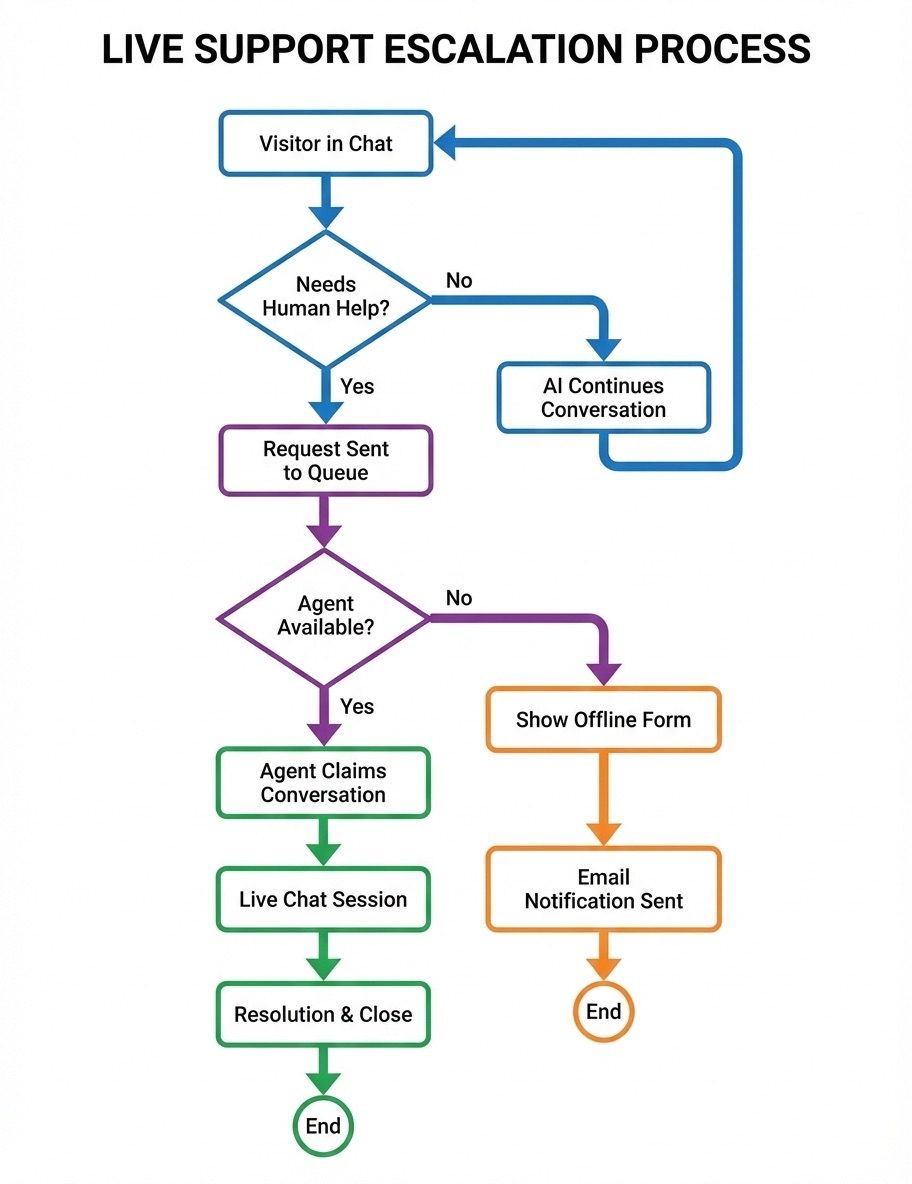
---
Key Capabilities
Conversation Queue
When visitors request human support, they enter a queue and see their position in line along with an estimated wait time. Your team members see all waiting conversations and can claim them.
Priority Levels
Conversations can be assigned priority levels -- Low, Normal, High, or Urgent -- so your team can focus on the most important requests first.
File Sharing
Both your team members and visitors can exchange files and attachments during a live conversation.
Offline Messages
When no team members are available, visitors can leave a message with their contact information. Your team receives these messages and can follow up when back online.
Visitor Ratings
After a conversation ends, visitors can rate their experience using a 5-star rating system and leave comments.
Real-Time Messaging
Messages are delivered instantly with typing indicators and read receipts. Delivery status follows a WhatsApp-style pattern: Pending, Delivered, and Read.
AI Preview
Before connecting with a visitor, your team members can review the full AI conversation to understand what was already discussed and what the visitor needs.
Connection Resilience
If a connection drops, the system automatically reconnects and queues any messages sent during the disconnection. Conversations persist across page refreshes so nothing is lost.
---
Getting Started
To start using Live Agent Support:
- Enable the addon from your subscription settings ($49/month)
- Configure your Support Hours and settings
- Invite team members from the Team Members page. Any team member with access to the admin portal can act as a Live Support agent -- no separate role is required.
- Team members log into the Support Dashboard and toggle Online to start receiving conversations
For questions about Live Agent Support, contact support@adaptivetelehealth.com.
---
Related Pages
Your Support Dashboard
The Support Dashboard is where your team members manage live conversations with website visitors. It is opened from the Support Chat item in the admin portal's left navigation, and it provides everything needed to monitor the queue, chat in real time, and follow up on offline messages.
---
Dashboard Layout
The dashboard is a two-pane layout. The left pane lists conversations and is split into three tabs. The right pane shows the selected conversation -- visitor info, the previous AI exchange, and the live chat thread.
A small info button in the page header opens a "Getting Started with Live Support" guide, and a settings shortcut links to the chatbot's Live Support configuration.
---
Conversation Tabs
The left pane has three tabs:
Active
Shows everything that is currently in motion. The tab label includes a count of all in-progress items. Inside the tab, conversations are split into two sections:
- QUEUE -- Visitors who have requested human support and are waiting to be claimed. Each card shows priority, how long they have been waiting, and a Claim button.
- MY CHATS -- Conversations you have already claimed and are actively handling.
Closed
Shows conversations that have ended -- whether they were resolved by an agent, returned to the AI, or abandoned by the visitor. A date range picker at the top lets you filter by start and end date, and the list scrolls infinitely as you reach the bottom.
For each closed conversation you can see closing notes left by the agent and any 1-5 star rating left by the visitor.
Offline
Lists messages submitted by visitors when no team members were online. The tab label shows the count of pending offline messages. Each card shows the visitor's name, email, optional subject, and how long ago it was submitted. See When Your Team is Offline for details.
---
Online/Offline Toggle
At the top of the dashboard you'll find a toggle that controls your availability:
- Online -- You are available to receive and claim conversations. You will hear audio notifications for new chats and messages.
- Offline -- You are unavailable. New conversations will not be assigned to you, and any conversations you were handling are returned to the queue for another team member.
See Setting Your Availability for more on managing your status.
---
Previous AI Conversation
When you select a conversation, the chat panel shows the AI exchange that took place before the visitor requested human support. It is displayed in a clearly marked "Previous AI Conversation" block at the top of the message thread, with the visitor's questions and the AI's replies parsed into individual messages.
This lets you understand what the visitor asked and what the chatbot already told them, so you don't ask them to repeat themselves.
---
Audio and Browser Notifications
The dashboard plays sound alerts when:
- A new conversation enters the queue
- A visitor sends a new message in one of your active conversations
If you allow browser notifications, you will also see desktop pop-ups for new support requests and incoming messages -- helpful when the dashboard tab is in the background. If notifications are blocked by the browser, the dashboard explains how to re-enable them.
---
Messaging Tools
The chat panel includes:
- Emoji picker -- A built-in picker in the message input opens a grid of common emojis you can drop into your reply. Emoji-only messages are rendered larger for emphasis.
- Typing indicator -- "Visitor is typing..." appears while the visitor composes a message, and they see the same when you are typing.
- Message status -- Each message you send shows its delivery state: a hollow circle while pending, a single check when delivered to the visitor, and a double check once they have read it.
- End Conversation -- A primary button at the top of the chat panel that ends the session, prompts you for closing notes, and returns the visitor to the AI chatbot.
- Release to Queue -- A secondary button that hands the conversation back to the queue so another agent can claim it. See Transferring Conversations.
File attachments are not currently part of the agent dashboard's messaging tools.
---
Visitor Status Awareness
If a visitor closes their browser or otherwise disconnects mid-conversation, a "Visitor Offline" banner appears in the chat panel and a tag is added to their conversation card. Anything you send while they are offline is held and delivered when they reconnect.
---
Related Pages
Managing Your Support Queue
The support queue holds conversations from visitors who are waiting for a team member. Understanding how the queue works helps you provide fast, organized support.
---
How Conversations Enter the Queue
A conversation enters the queue in one of three ways:
- Button click -- The visitor clicks the configurable "Talk to a Human" button (the label can be changed under the chatbot's Live Support settings).
- Fallback offer -- The AI offers human support after it cannot answer a question, and the visitor accepts.
- Escalation -- The visitor explicitly asks to speak to a person in chat and the system routes them.
Once in the queue, the visitor sees their position in line and an estimated wait time, and they receive a system message confirming they have been added.
---
Where the Queue Lives in the Dashboard
The queue is shown in the Active tab of the Support Dashboard, in the QUEUE section above your own active chats. The Active tab label includes a running total of waiting plus active conversations, and the QUEUE section header shows just the waiting count.
Each card in the queue includes:
- The visitor's name (or "Visitor" if not provided) and email if available
- A priority tag (Urgent / High / Normal / Low)
- A live "X minutes waiting" timer that refreshes every 30 seconds
- The chatbot the visitor is talking to
- A Claim button
---
Priority Levels
Each conversation in the queue has one of four priority levels:
- Urgent -- Highest priority.
- High -- Above Normal and Low.
- Normal -- The default for most conversations.
- Low -- Lowest priority.
Conversations are sorted in the queue by priority first, then by how long they have been waiting.
---
Claiming a Conversation
To start helping a visitor, click the Claim button on their card. When you claim a conversation:
- It moves from the QUEUE section into your MY CHATS section.
- The visitor receives a system message saying "You are now connected with [your name]. How can we help you today?"
- The chat panel opens with the visitor's previous AI conversation displayed at the top of the message thread, so you have full context.
- You can begin responding in real time.
Tip: Click the conversation card to preview the visitor's prior AI exchange before claiming, so you understand what they need.
---
Releasing a Conversation Back to the Queue
If you've claimed a conversation but realize you can't handle it -- the question is outside your area, your shift is ending, or someone else is better suited -- click Release to Queue. The conversation returns to the waiting list, the visitor sees a system message that they are being transferred, and another team member can claim it. See Transferring Conversations for more.
---
Queue Position and Wait Times
While a visitor is in the queue, the widget shows them:
- Their current position in line
- An estimated wait time, calculated from average resolution time and the number of online agents
These updates happen in real time, so visitors know their place is being held.
---
When All Agents Go Offline
If every agent goes offline while a visitor is still waiting, the platform notifies the visitor that the team is now offline and offers them the option to leave an offline message instead. Their waiting conversation is then closed out so the queue does not grow indefinitely. See When Your Team is Offline for the full flow.
---
Related Pages
Handling Live Conversations
This guide walks through the full lifecycle of a live support conversation, from claiming it in the queue to ending it cleanly.
---
Step 1: Claim the Conversation
In the Active tab of the Support Dashboard, find the visitor in the QUEUE section and click Claim. The conversation moves into your MY CHATS section, and the visitor receives a system message that you have joined the chat. See Managing Your Support Queue for more on the queue.
---
Step 2: Review the Previous AI Conversation
When the conversation opens, the message thread shows a "Previous AI Conversation" block at the top with everything the visitor said to the chatbot before requesting human support. Use it to:
- See what the visitor asked
- See what the AI told them
- Identify where the AI fell short
This context lets you pick up exactly where the AI left off without asking the visitor to repeat themselves.
---
Step 3: Respond in Real Time
Type your reply in the message input at the bottom of the chat panel and press send. While you type, the visitor sees a typing indicator -- and you'll see "Visitor is typing..." when they are composing.
Each message you send displays a delivery status:
- A hollow circle while the message is pending
- A single check once it has been delivered to the visitor
- A double check once the visitor has read it
If the visitor disconnects mid-conversation, a "Visitor Offline" banner appears at the top of the chat panel. Anything you send while they're offline is held and delivered when they reconnect.
---
Step 4: Add Emoji When Helpful
Click the emoji button in the message input to open the emoji grid and drop one into your reply. Emoji-only messages are rendered larger for emphasis. There is no file attachment option in the agent dashboard today.
---
Step 5: End the Conversation
When the visitor's question has been answered, click End Conversation at the top of the chat panel. A modal opens and asks for Closing Notes -- a short summary of how the issue was resolved. Notes are required before you can end the conversation.
When you confirm:
- The conversation is marked as resolved and your closing notes are saved.
- The visitor is returned to the AI chatbot and can keep asking questions there.
- The closed conversation moves into the Closed tab, where the notes you wrote stay attached to the record.
After the conversation ends, the visitor may be prompted to leave a 1-5 star rating with an optional comment. Any rating submitted appears alongside the conversation in the Closed tab.
---
Releasing a Conversation Instead of Ending It
If you realize you can't fully help the visitor, click Release to Queue instead of ending the conversation. The visitor sees a system message that they are being transferred, and the conversation goes back to the queue for another team member to claim. The full message history -- including the AI exchange and everything you sent -- is preserved. See Transferring Conversations for details.
---
Reviewing Closed Conversations
Past conversations are available in the Closed tab. You can filter by date range, scroll through the list, and open any record to see the full transcript along with the agent's closing notes and the visitor's rating (if one was left). This is useful when a returning visitor mentions a previous interaction.
---
Related Pages
When Your Team is Offline
When no team members are online -- or when a visitor reaches out outside your scheduled support hours -- visitors can still leave a message through the offline messaging system. This page explains what visitors experience and how your team follows up.
---
What Visitors See
Two situations bring up the offline experience:
- No agents online. Every team member has set themselves to Offline (or no one has logged into the dashboard yet).
- Outside support hours. The chatbot is configured with a support schedule, and the visitor's request falls outside the scheduled days/times.
In either case, the visitor sees a message you control from the chatbot's Live Support settings -- the "no agents available" message, the "all agents offline" message, or the "off-hours" message, depending on which scenario triggered it.
---
Offline Message Form
When the offline form is enabled, visitors can submit:
- Name (optional)
- Email address (required)
- Phone number (optional)
- Subject (optional)
- Their message
The submission is saved to the supportofflinemessages record for the chatbot and appears in the Offline tab of the Support Dashboard. The tab label shows a count of pending messages so the team knows when something new has come in.
---
Email Notifications
When a visitor submits an offline message, the platform sends an email notification to the team members who have been configured to receive them. This way the team learns about a waiting message even if no one is actively watching the dashboard.
Which users receive these emails is configured per client. See Setting Up Live Agent Support for how to manage the notification recipients list.
---
Replying to Offline Messages
When you're back online, open the Offline tab in the Support Dashboard. Pending messages are listed first. Selecting one opens its details on the right side, where you can:
- See the visitor's contact info, subject, and message
- Read the AI conversation that preceded the message (if the visitor was chatting first)
- Type a reply that is emailed to the visitor
- Mark the message as archived if no reply is needed
Once you reply or archive, the message moves out of the pending count.
---
Off-Hours Behavior Options
Under the chatbot's Live Support settings, you can choose what happens when a visitor reaches out outside your scheduled support hours. The three options are:
- Show message and allow offline message form -- Visitors see your off-hours message and can submit a message form with their contact details.
- Show message only (no offline form) -- Visitors see your off-hours message but cannot submit a form.
- Hide the live chat option completely -- The "Talk to a Human" entry point is hidden during off-hours, so visitors only interact with the AI chatbot.
Pick the option that matches how you want to handle traffic outside business hours.
---
What Happens If All Agents Go Offline Mid-Queue
If every agent goes offline while visitors are still waiting in the queue, the platform notifies those visitors that the team has gone offline, offers them the chance to leave an offline message, and clears their waiting conversation so the queue does not stall. The next time someone goes online, those offline messages are waiting in the Offline tab.
---
Related Pages
Setting Your Availability
Your availability status controls whether you receive new support conversations. The Online/Offline toggle is located at the top of the Support Dashboard.
---
How to Access the Support Dashboard
Any team member with access to the admin portal can act as a Live Support agent -- there is no separate "agent" role to assign.
- Sign in to the admin portal.
- In the left navigation, click Support Chat.
- The first time you open this page, your agent profile is created automatically. No setup is required.
- Use the Online/Offline toggle at the top of the page to control your availability.
If you do not see Support Chat in the left navigation, ask your account owner or admin to confirm you have permission to access the admin portal.
---
Online
When you set your status to Online:
- You appear as available in the support system
- New conversations can be assigned to you
- You can claim conversations from the queue
- You receive audio notifications for new chats and incoming messages
---
Offline
When you set your status to Offline:
- You appear as unavailable in the support system
- New conversations will not be assigned to you
- You cannot claim conversations from the queue
- Any conversations you are currently handling continue until you resolve them
---
When to Toggle
Set yourself to Online when you are actively available to handle support conversations.
Set yourself to Offline when you are done for the day, stepping away, or otherwise unable to respond to new conversations. If you are in the middle of a conversation, it will continue normally -- only new conversations are affected.
---
Related Pages
Transferring Conversations
If you've claimed a conversation but need another team member to handle it, you transfer it by releasing it back to the queue. The platform does not currently support direct agent-to-agent transfers -- the queue is the handoff mechanism.
---
How to Transfer a Conversation
- With the conversation open in the chat panel, click Release to Queue (the button is labeled with a "Transfer conversation to another agent" tooltip).
- The conversation moves out of your MY CHATS section and back into the QUEUE section, ready to be picked up.
- The visitor sees a system message telling them they are being transferred to another agent and to please wait.
- Other online agents see the queue update in real time and can claim the conversation.
- When another team member claims it, they get the full message history -- the original AI conversation, every message you exchanged with the visitor, and any context that has been added.
The conversation never leaves the system, so the visitor doesn't need to repeat their question or re-explain their situation.
---
When to Transfer
Common reasons to release a conversation back to the queue:
- The visitor's question is outside your area of expertise
- Your shift is ending and the visitor still needs help
- You have too many active conversations and another agent is available
- The visitor specifically asks for a different team member
If you simply set yourself to Offline while you are mid-conversation, the platform handles it for you: any conversations you were holding are returned to the queue automatically and the visitor is notified.
---
What the New Team Member Sees
When another team member claims the released conversation, they see:
- The "Previous AI Conversation" block with the full AI exchange that preceded the handoff
- All messages you exchanged with the visitor
- Visitor contact details (name, email, phone if provided)
- Priority and any tags
Because nothing is stripped on release, the next agent can pick up immediately without context loss.
---
Returning a Conversation to the AI Chatbot
If the visitor's question has been answered and they only need general help going forward, you can hand them back to the AI by clicking End Conversation and adding closing notes. The visitor is returned to the AI chatbot and can keep asking questions -- and they can request a human again at any time, which will start a new support conversation in the queue. See Handling Live Conversations for details on ending a conversation.
---
Related Pages
Setting Up Live Agent Support
This guide walks through the steps to configure Live Agent Support for your chatbot.
---
Step 1: Enable the Addon
Live Agent Support is a paid addon at $49/month. Enable it from your subscription settings. Once active, you can access the configuration options described below.
---
Step 2: Configure Support Hours
Support Hours let you define when your team is available for live support. Navigate to the Support Hours settings in your chatbot configuration.
Master Toggle
A master toggle enables or disables Support Hours scheduling. When disabled, live support availability is based solely on whether team members are toggled Online.
Timezone
Select the timezone your schedule should follow. All start and end times are interpreted in this timezone.
Weekly Schedule
Set your team's availability for each day of the week -- Monday through Sunday. For each day, configure:
- Whether the day is enabled or disabled
- Start time (e.g., 8:00 AM)
- End time (e.g., 5:00 PM)
Outside of scheduled hours, the system automatically switches to offline mode.
Offline Message
Customize the message visitors see when your team is unavailable. This message appears when a visitor requests human support outside of your configured hours or when no team members are online.
Offline Behavior
Choose what happens when your team is offline:
- Allow offline message form -- Visitors see your offline message and can submit their contact details and a message for follow-up.
- Show message only -- Visitors see your offline message but cannot submit a form.
- Hide chat -- The option to request human support is hidden entirely when the team is offline.
"All Agents Offline" Message
Customize a separate message that displays when all team members go offline during scheduled support hours. This lets you provide different messaging for unexpected unavailability versus planned off-hours.
---
Step 3: Set Up Offline Messages
Configure how offline messages are handled:
- Customize the offline message text visitors see
- Choose your offline behavior (form, message only, or hide chat)
- Team members receive email notifications when visitors leave offline messages
See When Your Team is Offline for more details on how the offline system works.
---
Step 4: Invite Team Members
Add team members who will handle live support conversations:
- Invite team members to your account from the Team Members page.
- There is no separate "agent" role to assign. Any team member with access to the admin portal can act as a Live Support agent.
- Each team member's agent profile is created automatically the first time they open the Support Dashboard. No setup is required from you.
- Team members log into the Support Dashboard and toggle Online to start receiving conversations.
---
Step 5: Go Live
Once your settings are configured and team members are set up:
- Team members log into the Support Dashboard
- They toggle their status to Online
- Visitors who request human support are connected to available team members
For questions about setup, contact support@adaptivetelehealth.com.
---
Related Pages
Analytics Dashboard Overview
Your Analytics tab provides a comprehensive view of how your chatbot is performing, with real-time metrics, interactive charts, and trend data to help you make informed decisions about your chatbot's training and configuration.
---
Accessing the Analytics Dashboard
To view your analytics:
- Log into your account and open your chatbot
- Click the Analytics tab
- The dashboard loads with the last 30 days of data by default
---
Dashboard Metrics
The top of the dashboard displays key performance numbers at a glance.
Conversation and Message Totals
| Metric | What It Shows |
|--------|---------------|
| Total Conversations | The total number of chat sessions visitors have started |
| Total Messages | All messages exchanged between visitors and your chatbot |
| Unique Users | The number of distinct visitors who used your chatbot |
Response Performance
| Metric | What It Shows |
|--------|---------------|
| Average Response Time | How quickly your chatbot typically replies to visitors |
| Min Response Time | The fastest response recorded in the selected period |
| Max Response Time | The slowest response recorded in the selected period |
| Fast Response Rate | The percentage of responses delivered quickly |
| Average Message Length | The typical length of messages in conversations |
Activity Summary
| Metric | What It Shows |
|--------|---------------|
| Active Days | Number of days your chatbot had at least one conversation |
| Messages Today | Messages exchanged so far today |
| Messages This Week | Messages exchanged in the current week |
| Messages This Month | Messages exchanged in the current month |
Engagement Metrics
| Metric | What It Shows |
|--------|---------------|
| Conversations Per Day | Average number of daily conversations |
| Messages Per Conversation | Average depth of visitor interactions |
| Total Documents | Number of training documents powering your chatbot |
Detailed Metrics
| Metric | What It Shows |
|--------|---------------|
| Total Tokens Used | The total number of AI tokens consumed across all conversations in the selected period |
The four large metric cards at the top of the dashboard show static comparison labels (for example, "+12% from last month"). These are placeholder labels and do not reflect a real period-over-period comparison -- always use the date range filter to compare time periods.
---
Charts and Visualizations
Below the metric cards, the dashboard includes several interactive charts that help you visualize trends and patterns.
Message Volume Trends
An area chart, labeled "Message Volume Trends" in the dashboard, that plots two daily series:
- Messages sent each day
- Unique users per day
This chart helps you identify busy days, spot trends, and understand how visitor activity changes over time.
24-Hour Activity Pattern
A chart titled "24-Hour Activity Pattern" that shows the number of messages received in each hour of the day. Use this to understand when your chatbot is busiest.
Response time by hour is shown separately in the Response Time Distribution chart described below -- it is not combined with message volume.
Topics Breakdown
A pie chart showing the distribution of conversation topics. This helps you understand what visitors are asking about most, so you can prioritize training content for those areas.
For new chatbots with limited conversation history, this chart may be sparse or empty until enough conversations have been collected.
Response Time Distribution
A bar chart showing how response times are distributed across ranges. You can quickly see whether most responses are fast or whether there are slower outliers that may need attention.
Performance Radar Chart
A multi-axis radar chart that gives you a visual summary of your chatbot's overall performance across several dimensions at once.
---
Dashboard Controls
Date Range Filter
By default, the dashboard shows the last 30 days of data. The date range filter is a select control with the following options:
- Today
- Last 7 Days
- Last 30 Days (default)
- Last 90 Days
- Custom Range -- pick specific start and end dates
The entire dashboard updates to reflect your selected period.
Auto-Refresh
Toggle auto-refresh to have the dashboard update automatically every 30 seconds. This is useful for monitoring activity in real time during busy periods.
Export
The Export control is a dropdown with two options:
- Export as CSV -- Tabular data suitable for spreadsheet analysis
- Export as JSON -- Full dataset including chart series, useful for custom reporting and integrations
The exported file always reflects your currently selected date range and filters.
Manual Refresh
Click the refresh button at any time to reload the dashboard with the latest data.
Per-Bot Scope
Analytics are scoped to the chatbot you are currently viewing. Each chatbot has its own dashboard -- there is no combined organization-wide view.
---
Tips for Reading Your Dashboard
- Look for trends over time rather than focusing on individual days. A single quiet day is normal, but a sustained decline may indicate an issue.
- Compare time periods by changing the date range to see how this month compares to last month.
- Check the hourly chart to understand when visitors are most active. This can inform when you update training content or monitor conversations.
- Review the topics breakdown regularly to make sure your training content covers what visitors are actually asking about.
---
Related Pages
Conversation Analytics
The Conversations tab in your chatbot management area lets you browse, search, and review every conversation your chatbot has had with visitors. You can filter by date and lead status, drill into individual messages, edit AI responses to create overrides, and export conversation data.
---
Browsing Your Conversations
When you open the Conversations tab, you see a list of all conversations your chatbot has had.
What the Conversation List Shows
Each conversation in the list displays:
| Field | Description |
|-------|-------------|
| Session ID | A unique identifier for the conversation |
| First Message Preview | The opening message from the visitor |
| Last Message Preview | The most recent message in the conversation |
| Message Count | Total number of messages exchanged |
| Created Date | When the conversation started |
| Updated Date | When the last message was sent |
| Lead Info | If the visitor provided contact details: name, email, phone, and company |
A small lead-conversion icon appears next to conversations where the visitor provided contact information, so you can scan the list and spot leads quickly.
Token usage is shown per message inside the expanded conversation view rather than as a list column -- see Viewing Conversation Details below.
The total number of conversations matching your current filters is displayed at the top of the list. Long lists load progressively as you scroll, so you can browse through high-volume conversations without manually paging through results.
---
Searching and Filtering
Search Bar
Use the search bar to find specific conversations by keyword. This searches across message content, session IDs, and lead information. The search is debounced -- results update shortly after you stop typing rather than on every keystroke.
Lead Filter
Filter conversations to show:
- All conversations -- every conversation regardless of lead status
- Leads only -- only conversations where the visitor provided contact information
- Non-leads only -- conversations from anonymous visitors
Date Filter
Narrow your results by time period:
- All -- every conversation, no date filter applied
- Today -- conversations from today only
- This Week -- conversations from the current week
- This Month -- conversations from the current month (the default)
- Custom Range -- select specific start and end dates
---
Viewing Conversation Details
Click on any conversation to expand it and see the full message history.
Message Details
Each message in the expanded view shows:
- Message content with full markdown formatting
- Token usage -- input and output tokens for each AI response
- Response time -- how long the chatbot took to respond
- Override indicator -- a marker showing if the AI response has been manually edited
Inline Response Editing
If you notice an AI response that could be improved, you can edit it directly from the conversation view:
- Find the AI response you want to improve
- Click the edit button on that response
- Modify the response text
- Save your changes
This creates a Q&A override, meaning the next time a visitor asks a similar question, your edited response will be used instead of the AI-generated one. This is a powerful way to continuously improve your chatbot's accuracy based on real conversations.
---
Exporting Conversations
You can export your conversation data in two formats.
CSV Export
Export conversation data as a CSV file for analysis in spreadsheet applications. The CSV includes conversation metadata (session IDs, message counts, timestamps), lead information, token usage, and the full conversation transcript for each session -- so you can read every message exchanged without opening each conversation in the platform.
To export as CSV:
- Apply any filters you want (date range, lead status)
- Click the Export CSV button
- A progress indicator shows the export status
- The file downloads automatically when ready
PDF Export
You can export PDF transcripts in two ways:
Single conversation:
- Open the conversation you want to export
- Click the Export PDF button
- The transcript downloads as a formatted PDF document
All filtered conversations (bulk PDF):
- Apply any filters you want (date range, lead status, search)
- Click the bulk PDF export action
- Every conversation that matches the current filter is combined into a single multi-conversation PDF and downloaded
Bulk PDF export is helpful for compliance reviews, monthly reports, or sharing a batch of related conversations with a colleague who does not have platform access.
Both export types include a progress tracker so you can see the status of your export.
---
Using Conversation Data Effectively
- Review conversations regularly to understand what visitors are asking and how well your chatbot responds.
- Look for patterns in unanswered or poorly answered questions, then add training content to address those gaps.
- Use inline editing to create Q&A overrides for questions your chatbot struggles with -- this immediately improves future responses.
- Export conversations periodically for team review or to share insights with colleagues.
---
Related Pages
Understanding How Your Chatbot is Performing
Your Analytics dashboard includes several performance metrics that help you understand how effectively your chatbot is serving visitors. This guide explains what each metric means and how to interpret the data.
---
Response Time
Response time measures how quickly your chatbot replies to visitor messages. A fast response time keeps visitors engaged and creates a smooth conversational experience.
What You See on the Dashboard
- Average Response Time -- the typical time between a visitor sending a message and receiving a reply
- Min and Max Response Time -- the fastest and slowest responses recorded in your selected date range
- Response Time Distribution Chart -- a bar chart showing how response times are spread across different ranges
How to Read the Distribution Chart
The response time distribution chart groups responses into time ranges. A healthy chatbot shows most responses clustered in the faster ranges. If you see a significant number of responses in the slower ranges, it may indicate that certain types of questions are taking longer to process.
Response time is measured server-side -- from the moment your chatbot receives the visitor's message to the moment the reply is fully generated. It does not include the time spent transmitting the response to the visitor's browser, so perceived latency may be slightly higher than the recorded number on slow connections.
Performance Radar Chart
The Performance Radar Chart on the Dashboard Overview gives you a single visual summary of how your chatbot is doing across several dimensions at once -- including the fast response rate (responses under 1 second). Use it to spot weak areas at a glance.
---
Fast Response Rate
The fast response rate is the percentage of all responses that were delivered in less than 1 second. The platform classifies any response under 1,000 milliseconds (server-side time-to-completion) as "fast".
A high fast response rate means your chatbot is consistently giving visitors prompt replies. This metric appears as a percentage on your dashboard, and is also surfaced on the Performance Radar Chart on the Dashboard Overview. For example, a fast response rate of 92% means that 92 out of every 100 responses were delivered in under 1 second.
What's a Healthy Number?
Response time depends on the length of the answer, the size of your training corpus, and how many candidates the platform searches before generating a reply. As a rough guide:
- Average response time under 2 seconds is typical for a healthy retrieval-augmented chatbot
- Fast response rate above 70% is a strong signal that visitors are getting near-instant replies
- Sustained averages above 5 seconds are worth investigating -- check for very large training documents, recent traffic spikes, or upstream AI service issues
---
Conversations Per Day
This metric shows the average number of conversations your chatbot handles each day over your selected time period.
What to Look For
- Steady growth suggests your chatbot is getting more visibility and use
- Sudden spikes may correspond to marketing campaigns, website changes, or seasonal traffic
- Declines could indicate widget visibility issues or changes to your website traffic
The daily messages and sessions line chart on the dashboard helps you visualize these trends over time.
---
Messages Per Conversation
This metric tells you the average number of messages exchanged in each conversation. It reflects how deeply visitors are engaging with your chatbot.
Interpreting This Number
- Low numbers (1-2 messages) may mean visitors are getting quick answers, or they may be leaving without getting the help they need. Review your conversations to understand which case applies.
- Moderate numbers (3-5 messages) typically indicate healthy engagement where visitors are asking questions and receiving useful follow-up responses.
- High numbers (6+ messages) could mean visitors are having in-depth conversations, or it could indicate the chatbot is struggling to provide a clear answer and the visitor keeps rephrasing.
---
Usage Statistics
Your dashboard summarizes overall message volumes and activity patterns across several time windows:
| Metric | What It Tells You |
|--------|-------------------|
| Messages Today | Current day's activity level |
| Messages This Week | Weekly activity trend |
| Messages This Month | Monthly activity overview |
| Active Days | How many days in the period had at least one conversation |
| Unique Users | Number of distinct visitors using your chatbot |
Hourly Activity Patterns
The hourly chart on your dashboard shows when visitors are most active. This can help you understand your audience's behavior -- for example, whether most interactions happen during business hours or in the evening.
---
Using Performance Data to Improve Your Chatbot
- If response times are slow, review your training documents. Very large documents or a high volume of training content can sometimes affect processing time.
- If conversations per day are low, check that your widget is properly configured and visible on your website. Review your widget settings for placement and visibility options.
- If messages per conversation seem too high, browse recent conversations in the Conversations tab to see if visitors are struggling to get clear answers. Add training content or Q&A overrides for common problem areas.
- Check the topics breakdown on your dashboard to make sure your training content covers the subjects visitors ask about most.
---
Related Pages
Visitor Insights
Your chatbot captures information about the visitors it interacts with. The Leads section helps you track who is engaging with your chatbot, manage contact information collected through lead capture forms, and export lead data for follow-up.
---
Unique Visitors
Your Analytics dashboard displays the total number of unique visitors who have interacted with your chatbot during the selected date range. This count is based on distinct visitor sessions, giving you a sense of how many individual people are using your chatbot.
---
Lead Capture Statistics
When you have lead capture enabled on your chatbot, the Leads section provides an overview of your captured contacts.
Lead Summary Metrics
| Metric | What It Shows |
|--------|---------------|
| Total Leads | The total number of visitors who have submitted their contact information |
| New Today | Leads captured today |
| New This Week | Leads captured in the current week |
| Identified Leads | Visitors who provided contact details |
| Anonymous Leads | Visitors who interacted but did not provide contact details |
| Average Sessions Per Lead | How many times, on average, each lead has returned to chat |
| Conversion Rate | The percentage of chatbot visitors who become identified leads -- calculated as identified leads divided by total visitors over the selected period |
---
Managing Your Leads
The Leads section includes tools for searching, filtering, and organizing your captured contacts.
Searching Leads
Use the search bar to find specific leads by:
- Name -- the name the visitor provided
- Email -- their email address
- Company -- the company name, if provided
Filtering Leads
Narrow your lead list using the available filters:
Status Filter:
| Status | Meaning |
|--------|---------|
| New | Recently captured, not yet reviewed |
| Contacted | You have reached out to this lead |
| Qualified | This lead has been assessed as a good fit |
| Converted | This lead became a customer or completed your desired action |
| Archived | No longer active, kept for records |
Date Range Filter: Filter leads by when they were captured by entering a start date and end date.
---
Viewing Lead Details
Click on any lead to open the lead detail modal, which shows:
- Contact information -- name, email, phone number, and company
- Conversation history -- a summary of the conversations this visitor has had with your chatbot
- Lead status -- their current status in your workflow
- Notes -- any notes you or your team have added
Editing Lead Notes
In the lead detail modal, you can add or edit notes for each lead. Use this to record follow-up actions, conversation summaries, or any other relevant information your team needs.
- Open the lead detail modal
- Find the Notes section
- Type or edit your notes
- Save your changes
Notes are visible to all team members who have access to the Leads section.
---
Exporting Lead Data
You can export lead information in three formats. Apply any filters first to narrow the list, then choose the export format that fits how you plan to use the data.
Export as PDF
- Apply any filters you want (status, date range, search)
- Click the Export PDF button
- The PDF includes contact details, lead status, and notes -- formatted for sharing or printing
Export as CSV
- Apply any filters you want
- Click Export CSV
- A CSV file downloads with one row per lead, including all contact fields, status, and notes
CSV is the right choice when you want to import leads into a CRM, sort them in a spreadsheet, or run your own analysis.
Export as JSON
- Apply any filters you want
- Click Export JSON
- A JSON file downloads with the full lead records
JSON is the right choice for custom integrations or when you need every field in a structured, machine-readable form.
---
Getting the Most from Visitor Insights
- Review new leads promptly -- visitors who provide their contact information are expressing interest. Timely follow-up improves conversion rates.
- Use status labels consistently -- keeping lead statuses up to date helps your team stay organized and avoids duplicate outreach.
- Check your conversion rate -- if it is lower than expected, review your lead capture form settings. Asking for fewer fields or adjusting when the form appears can improve completion rates. See Contact Forms for configuration options.
- Monitor returning visitors -- a high average sessions per lead indicates visitors find your chatbot useful and come back regularly.
---
Related Pages
Exporting Your Data
You can export conversation data, analytics metrics, and lead information from the platform. This guide covers the export capabilities that are currently available.
---
Available Exports
CSV Export -- Conversation Data
Export your conversation data as a CSV file from the Conversations tab. The CSV includes conversation metadata (session IDs, message counts, timestamps), lead information, token usage, and the full conversation transcript for each session -- so you can read every message exchanged without opening each conversation individually.
How to export conversations as CSV:
- Go to your chatbot's Conversations tab
- Apply any filters you want -- date range, lead status, or search terms
- Click the Export CSV button
- A progress indicator shows the export status
- The CSV file downloads automatically when ready
CSV files can be opened in any spreadsheet application (Google Sheets, Microsoft Excel, Numbers) for further analysis.
PDF Export -- Conversation Transcripts
You can export PDF transcripts in two ways from the Conversations tab.
Single conversation:
- Go to your chatbot's Conversations tab
- Click on the conversation you want to export
- Click the Export PDF button
- The transcript downloads as a PDF
Bulk PDF -- multiple conversations:
- Apply any filters you want (date range, lead status, search)
- Click the bulk PDF export action
- Every conversation that matches the current filter is combined into one multi-conversation PDF and downloaded
The PDF includes the full message history with timestamps, sender information, and any lead details associated with the conversation. Bulk PDF is useful for compliance reviews, monthly reports, or sharing a batch of related conversations with someone who does not have platform access.
Analytics Export -- CSV and JSON
Export the metrics and chart data from your Analytics dashboard. The Export control on the Analytics tab is a dropdown with two options:
- Export as CSV -- Tabular metrics suitable for spreadsheet analysis
- Export as JSON -- Full dataset including chart series, useful for custom reporting and integrations. JSON is the only format that includes the complete chart data (daily activity, hourly activity, topics breakdown, response time distribution).
How to export analytics data:
- Go to your chatbot's Analytics tab
- Set your desired date range and filters
- Open the Export dropdown
- Choose Export as CSV or Export as JSON
- The file downloads with a name that includes your chatbot name and the export date (for example,
statistics-yourbot-2026-04-29.csv)
Lead Export -- PDF, CSV, and JSON
The Leads section supports three export formats so you can choose the best fit for your workflow.
How to export lead data:
- Go to your Leads section
- Apply any filters (status, date range, search)
- Click the export option you want:
Lead exports are named with the chatbot ID and a timestamp (for example, leads<chatbot-id><timestamp>.pdf).
Export Progress
CSV, JSON, and PDF exports all show a progress indicator while the file is being prepared. Larger date ranges and unfiltered exports take longer to generate.
---
Tips for Working with Exports
- Filter before exporting to keep your files focused on the data you need. Exporting all conversations since the beginning of time creates unnecessarily large files.
- Export regularly if you need to keep records for compliance or reporting purposes.
- Use CSV exports for analysis when you want to sort, filter, or create charts from your data in a spreadsheet.
- Use JSON exports for integrations when you need full structured data, including the chart series from the Analytics dashboard.
- Use PDF exports for sharing when you need to send a specific conversation transcript or lead summary to someone who does not have platform access.
---
Need Help?
If you have questions about exporting your data or need assistance with a specific export, contact us at support@adaptivetelehealth.com.
---
Related Pages
Managing Your Team
The Team Members page lets you invite people in your organization to access the chatbot platform, assign them Permission Profiles that control what they can do, and manage pending invitations. Team management is available to account Owners and to anyone whose Permission Profile grants team management rights.
---
Viewing Your Team
The Team Members page displays a table of everyone in your organization who has access to the platform.
| Column | What It Shows |
|--------|---------------|
| Name | The team member's full name |
| Email | Their email address |
| Permission Profile | The profile assigned to them (Owner, Editor, Reporter, Viewer, or any custom profile your organization has created) |
| Status | Whether the account is Active or Inactive, and whether the user has verified their email (Verified or Pending) |
| Last Login | The most recent time they logged in |
| Actions | Edit or remove buttons (see notes on Owner restrictions below) |
Owner Restrictions
The account Owner cannot be edited or removed from the Team Members page. You also cannot edit or remove your own row from the table -- this prevents accidental lockouts. If you need to transfer Owner rights to another team member, contact support@adaptivetelehealth.com.
---
Inviting a Team Member
To add someone to your team:
- Go to the Team Members page
- Click Invite Team Member
- Enter the person's email address
- Select a Permission Profile from the dropdown (Owner, Editor, Reporter, Viewer, or a custom profile)
- Optionally, add a Personal Message -- this is included in the invitation email so the recipient knows who is inviting them and why
- Click Send Invitation
The person receives an email invitation with a link to create their account. Once they accept, their status changes from Pending to Active and they can log in with the permissions you assigned.
For details on what each Permission Profile allows, see Team Permissions.
---
Editing a Team Member
To change a team member's Permission Profile:
- Find the member in the Team Members table
- Click the Edit button on their row
- Select a different Permission Profile from the dropdown
- Save your changes
The member's access updates immediately. They do not need to log out and back in for the change to take effect -- the new permissions apply on their next page load or API request.
---
Removing a Team Member
To remove someone from your team:
- Find the member in the Team Members table
- Click the Remove button
- A confirmation dialog appears asking you to confirm the removal
- Confirm to remove the member
Once removed, the person can no longer log in or access any part of the platform. The Owner row and your own row are protected and cannot be removed.
---
Managing Pending Invitations
Below the active team members table, you can see a table of pending invitations.
| Column | What It Shows |
|--------|---------------|
| Email | The email address the invitation was sent to |
| Permission Profile | The profile that was assigned |
| Sent | When the invitation was sent |
| Expires | When the invitation will stop being valid if not accepted |
Actions for Pending Invitations
- Resend -- send the invitation email again, useful if the original was missed or went to spam. Resending also extends the expiration window.
- Cancel -- withdraw the invitation so it can no longer be accepted.
If an invitation expires before the recipient accepts it, ask them to check their spam folder, then resend the invitation or cancel it and send a fresh one.
---
Need Help?
If you have questions about managing your team, contact us at support@adaptivetelehealth.com.
---
Related Guides
Team Permissions
When you invite a team member, you assign them a Permission Profile that controls what they can access and do within the platform. This guide explains the available profiles and what each one allows.
---
How Permission Profiles Work
Every team member is assigned exactly one Permission Profile. The profile determines which areas of the platform they can see and interact with. You select the profile from a dropdown when inviting a new member, and you can change it later from the Team Members page.
Profile changes take effect on the user's next page load or API request -- they do not need to log out and back in.
---
Available Permission Profiles
Owner
Full, unrestricted access to everything in the platform. Owners manage chatbots, training content, analytics, conversations, widget settings, billing, subscriptions, payment methods, addons, team members, and organization settings. Owners are the only profile that can transfer ownership or close the account.
The Owner row cannot be edited or removed from the Team Members page -- this protects your account from accidental lockout.
Best for: The person ultimately responsible for the account. Most organizations have a single Owner.
Editor
Can create and edit chatbots, manage documents and training content, deploy and configure widgets, view analytics, review conversations, and export conversation history. Editors cannot manage billing, subscriptions, payment methods, addons, team members, or organization settings.
Best for: Team members who build and maintain your chatbot's content and configuration.
Reporter
Read-only access to chatbots, analytics, and conversations, with the ability to export conversation data and analytics reports. Reporters cannot edit chatbots, training content, widgets, or any settings.
Best for: Stakeholders, analysts, or compliance reviewers who need to pull data out of the platform but should not be able to change anything.
Viewer
Read-only access to chatbots, analytics, and conversations. Viewers cannot make changes to any settings, training content, or configurations, and cannot export data.
Best for: Team members who need to monitor chatbot performance or read conversations without making changes.
Custom Profiles
Your organization may also have custom Permission Profiles created by a platform administrator. Custom profiles combine specific permissions tailored to particular roles in your organization. If you see additional profiles in the dropdown when inviting a team member, those were created to fit your organization's needs.
---
Live Support Agents
Live Support agent capability is not tied to a Permission Profile. Any team member with access to the admin portal -- Owner, Editor, Reporter, Viewer, or a custom profile -- can act as a Live Support agent. Their agent profile is created automatically the first time they open the Support Dashboard, and they control their own Online/Offline status from there.
If you want to limit who handles live conversations, manage that operationally (decide internally who will go Online) rather than through Permission Profiles. See Setting Your Availability for details.
---
What Each Profile Can Access
| Feature Area | Owner | Editor | Reporter | Viewer |
|-------------|-------|--------|----------|--------|
| View Chatbots | Yes | Yes | Yes | Yes |
| Edit Chatbots | Yes | Yes | No | No |
| Train Chatbots (documents, Q&A, crawling) | Yes | Yes | No | No |
| Deploy and Configure Widgets | Yes | Yes | No | No |
| View Analytics and Dashboard | Yes | Yes | Yes | Yes |
| View Conversations | Yes | Yes | Yes | Yes |
| Export Conversations and Analytics | Yes | Yes | Yes | No |
| Manage Documents | Yes | Yes | No | No |
| Billing, Subscription, and Payment Methods | Yes | No | No | No |
| Team Management (invite, edit, remove) | Yes | No | No | No |
| Organization Settings | Yes | No | No | No |
---
Changing a Team Member's Profile
If someone's responsibilities change, you can update their Permission Profile:
- Go to the Team Members page
- Click Edit on the member's row
- Select a different Permission Profile from the dropdown
- Save your changes
The change takes effect on the user's next page load or API request.
---
Choosing the Right Profile
- Start with the least access needed. If someone only needs to review analytics, assign Viewer. You can always upgrade them later.
- Use Reporter for data consumers. If someone needs to pull conversation transcripts or analytics into reports but should not edit anything, Reporter is the right fit.
- Use Editor for content contributors. If someone manages your chatbot's training documents and Q&A pairs but does not need to handle billing or team settings, Editor is the right choice.
- Reserve Owner for the person ultimately responsible for the account. Owner access is unrestricted and cannot be removed from the Team page, so limit it to the person who genuinely needs that level of control.
---
Need Help?
If you have questions about Permission Profiles, need a custom profile created, or need to transfer Owner rights, contact us at support@adaptivetelehealth.com.
---
Related Guides
Organization Settings
The Organization Settings page is where Owners manage organization-wide details that apply to every member of the team -- the organization's name, primary domain, support contact, default time zone, and session timeout policy. To open it, click Settings in the left navigation.
Personal account settings (your own name, password, 2FA, time zone, and avatar) live on the Account page instead. See Account Settings.
---
Organization Information
| Field | What It Controls |
|-------|------------------|
| Organization Name | Your company or practice name. Appears in the admin portal sidebar and on receipts and invoices. |
| Domain | Your organization's primary website domain. Used as a reference field for support and identification. |
| Support Email | The email address your team uses to receive platform notifications and support communications. |
| Organization Time Zone | The default time zone for analytics rollups and scheduled reports. Individual users can override this on their own Account page. |
To change any of these, edit the field and save your changes. Updates apply across the platform immediately.
---
Session Timeout
Organization Settings is also where Owners configure how long an inactive admin portal session stays signed in before the system automatically logs the user out. The selected timeout is shown read-only on each user's Account page so they know what to expect.
For the security model behind sign-in, JWT tokens, and auto-logout, see Securing Your Account.
---
Plan and Billing
Plan information, payment methods, addons, invoices, and usage do not live on the Organization Settings page. They are split across dedicated pages:
- Subscription Management (
/subscription) -- current plan, billing cycle, next charge, addons, plan changes, cancellation - Payment Methods -- the card on file, used to charge your subscription
- Payment History -- past payments and downloadable invoices
See Managing Your Subscription and Payments & Invoices for details.
---
Notifications
Notification preferences are managed on a separate Notification Settings page, not on Organization Settings. Notification Settings let you control which platform alerts your organization receives and where they are sent.
---
Who Can Edit Organization Settings
Only Owners can edit Organization Settings. Editor, Reporter, and Viewer profiles do not have access to this page. If you need to change an organization-level field and you are not the Owner, ask your account Owner to make the change or contact support@adaptivetelehealth.com.
---
Need Help?
If you need to transfer ownership, change your domain, or update an organization-level field that is not editable from this page, contact us at support@adaptivetelehealth.com.
---
Related Guides
Securing Your Account
Keeping your account secure protects your organization's data and your visitors' information. This guide covers Two-Factor Authentication, password requirements, password resets, and how the platform handles signed-in sessions.
---
Two-Factor Authentication (2FA)
Two-Factor Authentication adds an extra layer of security to your account. With 2FA enabled, logging in requires both your password and a verification code from an authenticator app on your phone.
2FA is per-user, not per-organization. Enabling 2FA on your own account does not enforce it for other team members -- each team member can choose to enable it on their own Account page.
Enabling 2FA
- Go to your Account page
- Find the Security card
- Click Enable 2FA
- A modal appears with:
- Open your authenticator app and enter the 6-digit code it displays
- Click Confirm to complete setup
From this point on, you will be asked for a verification code each time you log in.
Disabling 2FA
If you need to disable Two-Factor Authentication:
- Go to the Security card on your Account page
- Click Disable 2FA
- Enter your password to confirm
- 2FA is turned off
Backup Codes
When you enable 2FA, the system generates 10 one-time-use backup codes. These codes let you log in if you lose access to your authenticator app (for example, if your phone is lost or reset).
Important details about backup codes:
- Each code can only be used once
- A counter shows how many codes you have remaining
- You can regenerate a new set of backup codes at any time (this invalidates any unused codes from the previous set)
- Store your backup codes somewhere safe and separate from your phone -- a password manager, a printed copy in a secure location, or a secure note
---
Password Requirements
Your password must meet the following requirements:
- Minimum 8 characters in length
- Must include at least one symbol (such as !, @, #, $, %)
- Must include at least one uppercase letter
- Must include at least one lowercase letter
- Must include at least one number
Tips for a Strong Password
- Use a password manager to generate and store strong, unique passwords
- Do not reuse passwords from other websites or services
- Avoid using personal information like your name, birthday, or common words
- Longer passwords are generally more secure -- consider using 12 or more characters
Changing Your Password
You can change your password at any time from the Security card on your Account page. Enter your current password, your new password, and confirm the new password, then save. The new password must satisfy the requirements above.
First-Login Password Change
When you accept a team invitation, the platform requires you to set a new password the first time you sign in. This protects you from continuing to use any temporary credential that may have been included in the invitation flow.
Forgot Password
If you cannot sign in, click Forgot password? on the login screen. The platform sends a password reset link to your email. The link is single-use and expires after a short window for security. Open the link, set a new password that meets the requirements above, and sign in.
---
How Sessions Work
The platform uses signed access tokens to keep you logged in.
- Access tokens expire 60 minutes after they are issued. Your browser automatically refreshes them in the background while you are active, so you should not notice the rotation.
- Refresh tokens expire 7 days after they are issued. If you have been signed out completely (no recent activity for more than 7 days), you will be asked to sign in again with your password.
- Inactivity auto-logout. Your organization's session timeout (set by your Owner under Organization Settings) controls how long an idle session stays open. The current timeout is shown read-only on your Account page so you always know how it is configured. When the timer elapses, the platform signs you out automatically. This is enforced client-side by the session timeout manager and reinforced server-side by the access token expiration.
Today, there is no admin portal screen that lists the individual devices or browsers your account is signed in on, and there is no self-service "sign out everywhere" button. If you are concerned that someone else has access to your account, change your password immediately -- this invalidates existing tokens on the next refresh -- and enable 2FA. If you need an immediate global sign-out (for example, after a lost device), contact support@adaptivetelehealth.com.
---
What to Do If You Suspect Unauthorized Access
- Change your password immediately
- Enable 2FA if it is not already turned on
- Regenerate your 2FA backup codes (this invalidates any old codes that may have been exposed)
- Check your account settings and Team page for any unexpected changes
- Contact us at support@adaptivetelehealth.com if you need an immediate global sign-out or further assistance
---
Related Guides
Account Settings
Your Account Settings page is where you manage your personal information, change your password, set up Two-Factor Authentication, and configure display preferences. These settings apply to your individual account and do not affect other team members.
To open it, click your name in the admin portal and choose Account -- the page is also reachable directly at /account and /profile. The page title in the product is "Account Settings."
For organization-wide settings (organization name, domain, default time zone, session timeout policy), see Organization Settings.
---
Personal Information
The Account page lets you view and edit the following fields:
| Field | Description |
|-------|-------------|
| Full Name | Your name as it appears to team members and on conversation transcripts (editable) |
| Email Address | The email you use to log in (read-only -- contact support to change) |
| Phone Number | Your contact phone number (optional) |
| Time Zone | Your preferred time zone for displaying dates and times in the admin portal |
| Language | Your preferred interface language |
Editing Your Information
- Open your Account page
- Update Full Name, Phone Number, Time Zone, or Language as needed
- Save your changes
Your email address is shown for reference but cannot be changed from this page. If you need a new email on file, contact support@adaptivetelehealth.com.
Setting Your Time Zone
Select your time zone from the dropdown to ensure dates and times displayed in the admin portal use your local time. This is especially important if your team spans multiple time zones. Your individual time zone overrides the organization default when you are signed in.
---
Organization Reference
The Account page also shows your organization's name in a small reference card on the page. This is read-only -- if your organization name needs to change, an Owner can update it on Organization Settings.
---
Security Card
The Security card on the Account page is where you:
- Change your password
- Enable, disable, and re-configure Two-Factor Authentication
- Regenerate 2FA backup codes
For full details on each of these, see Securing Your Account.
---
Session Timeout (Read-Only)
Your Account page displays the session timeout that has been configured for your organization. This is informational only -- the value is set by your account Owner on Organization Settings, not by individual team members.
---
Need Help?
If you need to update your email address or any field that is not editable from this page, contact us at support@adaptivetelehealth.com.
---
Related Guides
Subscription Plans
Choose the plan that fits your organization's needs and scale as you grow.
---
Available Plans
Adaptive Health AI offers a Free plan and three paid tiers -- Starter, Professional, and Enterprise. For current limits and pricing, visit the pricing page on our website or open the Subscription Management page in the admin portal.
Plans differ based on:
- Number of Chatbots -- How many chatbots you can create and deploy
- Message Limits -- Monthly messages across all your chatbots
- Training Runs -- How often you can retrain your chatbots with updated content
- Team Members -- Number of user accounts with dashboard access
- Support Tier -- Email support on lower tiers, priority support on higher tiers
---
What Every Plan Includes
Regardless of which plan you choose, you get access to these core features:
- HIPAA-Compliant Infrastructure -- Your data is protected on a secure, compliant platform
- Business Associate Agreement (BAA) -- Available with all paid plans at no additional cost
- Email Support -- Reach our team at support@adaptivetelehealth.com
- Widget Customization -- Match your chatbot's appearance to your brand
- Analytics Dashboard -- Track conversations, usage, and chatbot performance
---
Higher-Tier Benefits
As you move to higher-tier plans, you unlock additional capabilities such as:
- Additional chatbots for different departments or use cases
- Higher monthly message volume
- More team members with admin portal access
- Priority support with faster response times
For a detailed feature comparison across all plans, visit the pricing page on our website.
---
Free Trial
A free trial is included with paid plans. The Free plan has no trial because there is nothing to bill. Enterprise plans typically include a longer trial than standard paid plans.
The exact trial length for each plan is displayed at the top of every plan card in the registration flow and on the Subscription Management page in the admin portal -- those values reflect what your account will actually be billed and are the source of truth.
Your card is validated during registration, but you will not be charged until the trial ends. During the trial you have full access to your selected plan's features. If the plan is not the right fit, you can switch plans or cancel before the trial ends and you will not be charged.
If your trial ends without a valid payment method on file, your subscription moves to a suspended state until a card is added or the account is reactivated.
---
Billing Cycles
Two billing options are available for every paid plan:
- Monthly Billing -- Pay month-to-month with the flexibility to change plans each cycle
- Annual Billing -- Pay once per year and save compared to the monthly rate
Annual billing locks in your rate for the full year and simplifies budgeting. You can switch between monthly and annual billing from your Subscription Management page.
---
Choosing the Right Plan
When selecting a plan, consider:
- How many chatbots you need to create
- Your expected monthly message volume
- How many training documents you plan to upload
- The number of team members who need dashboard access
Start with the plan that matches your current needs. You can upgrade at any time as your organization grows -- upgrades take effect immediately and are prorated.
---
Related Guides
Managing Your Subscription
View your plan details, upgrade or downgrade, switch billing cycles, cancel, or reactivate from the Subscription Management page.
To open it, click Subscription in the left navigation of the admin portal. The page is reachable directly at /subscription -- it is not nested under Settings.
---
Viewing Your Current Plan
The Subscription Management page shows everything about your active subscription:
- Your current plan name and tier
- Whether you are on a monthly or annual billing cycle
- Your next billing date and the amount that will be charged
- Active addons attached to your subscription
- Trial status and trial end date, if you are still in a trial
- Plan limits and your current usage against them
---
Upgrading Your Plan
If you need more chatbots, higher message limits, or access to more features, you can upgrade to a higher-tier plan at any time.
How to upgrade:
- Go to Subscription in the left navigation
- Select Change Plan
- Choose the plan you want to upgrade to
- Review the pricing and proration details
- Confirm your upgrade
Upgrades take effect immediately. Your new plan's features and higher limits are available right away. The price difference is prorated for the remainder of your current billing cycle and charged to your card on file.
Upgrading During a Trial
If you change plans while you are still in a free trial, the change is applied immediately at no charge -- proration and immediate billing are skipped while the trial is active. Your trial continues to its original end date on the new plan.
---
Downgrading Your Plan
If your current plan provides more capacity than you need, you can switch to a lower-tier plan.
How to downgrade:
- Go to Subscription in the left navigation
- Select Change Plan
- Choose a lower-tier plan
- Review what changes with the new plan
- Confirm your downgrade
Downgrades take effect at the end of your current billing cycle. You continue to have full access to your current plan's features until that date. While the downgrade is pending, a Scheduled Downgrade banner appears at the top of the Subscription page showing the new plan and the date it takes effect.
Cancelling a Scheduled Downgrade
If you change your mind before the downgrade takes effect, click Cancel Downgrade on the Scheduled Downgrade banner. Your subscription stays on its current plan and the scheduled change is removed.
---
Switching Billing Cycles
You can switch between monthly and annual billing from the Subscription Management page. Annual billing offers a discounted rate compared to paying monthly.
- Switching to annual -- You are charged the annual amount and receive credit for any unused time on your current monthly cycle.
- Switching to monthly -- Typically available at your next annual renewal date.
---
Cancelling Your Subscription
You can cancel your subscription at any time from the Subscription Management page.
How to cancel:
- Go to Subscription in the left navigation
- Click Cancel Subscription
- Optionally, share a brief cancellation reason -- this helps us improve the product
- Confirm the cancellation
Your access continues until the end of your current billing period -- you keep full functionality and you are not charged again. After that date, the account moves to a cancelled state.
Reactivating a Cancelled Subscription
If you cancel and change your mind, you can reactivate your subscription from the Subscription Management page before access ends. After your access ends, contact support@adaptivetelehealth.com to discuss reactivation.
---
What Happens If a Payment Fails
If a renewal payment fails, the platform automatically retries the charge up to three times, three days apart. If all retries fail, your subscription moves to a past_due state and then to suspended. While suspended, your chatbots stop serving new conversations until the payment issue is resolved.
You can manually retry a failed payment from the Payment History page, or update your card on file from Payment Methods. For full details on the dunning flow, see Payments & Invoices.
---
Enterprise Plans
For organizations that need custom configurations, higher volume, or dedicated support beyond what standard plans offer, contact our team at support@adaptivetelehealth.com to discuss enterprise options. Enterprise plans include an extended free trial -- the exact length is displayed during registration and on the Subscription Management page.
---
Related Guides
Addons
Extend your plan with additional features without upgrading to a higher tier. Addons are managed from the Subscription Management page in the admin portal.
---
Live Agent Support -- $49/month or $490/year
Enable your team to handle live conversations directly with website visitors. When your chatbot encounters a question it cannot resolve or when a visitor requests human assistance, conversations are handed off to a live agent on your team.
The Live Agent Support addon includes:
- Support Dashboard -- A dedicated interface for your team to manage incoming conversations
- Conversation Queue -- Incoming visitor requests are organized in a queue so your agents can respond in order
- File Sharing -- Exchange files with visitors during live conversations
- Offline Messages -- Visitors can leave messages when no agents are available, and your team can follow up later
- Visitor Ratings -- Collect feedback from visitors after their support interaction
- Support Hours Scheduling -- Define when live agent support is available so visitors see accurate availability
Pricing options:
- Monthly -- $49/month
- Annual -- $490/year (saves roughly two months compared to paying monthly)
For a complete guide on setting up and using Live Agent Support, see What is Live Agent Support?.
---
Hide Powered By Badge -- $20/month or $200/year
Remove the small "Powered by Adaptive Health AI" attribution badge from your chatbot widget so the widget appears fully under your own brand on your website.
Pricing options:
- Monthly -- $20/month
- Annual -- $200/year
The branding change takes effect immediately on every page where your widget is embedded once the addon is active.
---
How to Enable an Addon
- Open the Subscription page in the admin portal
- Scroll to the Addons section
- Click Add on the addon you want to activate
- Choose monthly or annual billing
- Confirm
The addon activates immediately. The first charge is prorated for the remainder of your current billing cycle and the addon then renews on the same cycle as your subscription.
Enabling an Addon During a Trial
If you activate an addon while you are still in a free trial, the addon is free for the rest of the trial. Billing for the addon begins when your trial ends, alongside your first plan charge.
---
Cancelling an Addon
You can cancel any addon from the Subscription page. Cancellations take effect at the end of your current addon billing period -- you keep the addon's features through that date, and you are not charged again. To cancel:
- Open the Subscription page
- Find the addon in the Addons section
- Click Cancel
- Confirm
---
Failed Addon Payments
Addons follow the same dunning rules as your main subscription. If an addon payment fails, the platform retries up to three times, three days apart. If all retries fail, the addon is suspended and its features are turned off until payment is resolved. Your underlying subscription is not cancelled by an addon failure -- only the addon is affected.
---
Future Addons
Additional addons will be made available as new features are developed. Check the Subscription page periodically to see any newly available options.
---
Related Guides
Tracking Your Usage
Monitor your usage to stay within plan limits and avoid interruptions to your chatbot service.
---
Where Usage Information Lives
Usage details for your account live on the Subscription Management page (/subscription). The plan card on that page shows your current limits and how much of each you have used in the active billing cycle.
The home Dashboard shows summary cards but is not the source of truth for plan usage -- always check the Subscription page when you want exact numbers.
---
Usage Metrics
The Subscription page tracks the following metrics so you can see how much of your plan you are using:
- Messages Sent -- The total number of messages exchanged across all your chatbots during the current billing cycle. This is the primary metered metric on every plan.
- Training Runs -- The number of times you have trained or retrained your chatbots during the current billing cycle.
- Team Members -- The number of user accounts with admin portal access against the seat limit on your plan.
- Chatbots -- The number of active chatbots against the chatbot limit on your plan.
---
Understanding Plan Limits
Each plan has its own limits. A few rules to keep in mind:
- Limits reset on your billing cycle anchor. Counters for messages and training runs reset on the same day of the month (or year, for annual plans) that your subscription started -- not on the calendar 1st.
- Approaching your limits may affect chatbot functionality. When usage gets close to a limit, the platform surfaces a visual warning on the Subscription page. If you exceed a limit, the Subscription page indicates which metric is over-cap.
- If your plan is paused or suspended due to a billing issue, chatbots stop serving new conversations until the issue is resolved. See Payments & Invoices for details on the dunning flow.
---
Staying Within Your Limits
To make the most of your plan:
- Check your usage regularly from the Subscription page so there are no surprises
- Optimize your chatbot training -- avoid unnecessary retraining when only minor changes are made
- Upgrade your plan if you consistently approach or hit your limits -- this ensures uninterrupted service for your visitors
---
When You Are Running Low
If your usage is approaching your plan's limits, consider these options:
- Review the metric details on the Subscription page to understand which limit is closest to being hit
- Deactivate chatbots that are no longer in use to free up the chatbot slot
- Upgrade to a higher plan for increased capacity across all metrics
You can manage your plan at any time from the Subscription Management page.
---
Related Guides
Payments & Invoices
Manage your payment methods, view past payments, download invoices, and understand what happens when a charge fails.
---
Payment Methods
Accepted Cards
We accept Visa and Mastercard only. American Express and Discover are not currently supported.
How Payments Are Processed
All payments are processed through CardPointe, a PCI-compliant payment processor. When you add or update a card, you enter your card number, expiration date, and CVV directly into a secure CardPointe iframe embedded in the Payment Methods page. Card data is tokenized inside that iframe and never touches our servers -- we only store the resulting token, the last four digits, and the expiration date.
Adding or Updating Your Card
To add a new payment card or update your existing one:
- Go to the Payment Methods page in the admin portal
- Click Add Payment Method
- Enter your card details into the secure CardPointe iframe
- Provide your billing address
- Save your payment method
Your card is validated immediately when you save it. Invalid cards are rejected at this step before any charges are attempted.
Default Payment Method
If you have more than one card on file, only the default card is used for renewal charges. To switch defaults, click Set as default on the card you want to use. You cannot delete the default card directly -- first set another card as the default, then remove the old one.
Expiring Soon Warnings
The Payment Methods page flags any card whose expiration date is within the next three months as Expiring Soon. Update the card before it expires to avoid a failed renewal charge.
---
Payment History
View all your past payments on the Payment History page in the admin portal. Each entry shows:
- Date -- When the payment was charged
- Amount -- The total amount charged, including any tax line items
- Description -- What the payment was for (plan subscription, addon, etc.)
- Status -- Whether the payment was successful, pending, or failed
You can download an invoice for any successful payment from this page for your records.
Upcoming Payment
The Payment History page also previews your next scheduled charge -- amount and billing date -- so you know what to expect before it posts.
Manual Retry for Failed Payments
If a charge has failed, the Payment History page shows a Retry Payment button next to that line item. Use it after you have updated your card or resolved the issue with your bank. A successful manual retry restores your subscription if it had been moved to past_due or suspended.
---
Billing Information
Keep your billing address and contact information up to date on the Payment Methods page. This information appears on your invoices.
Automatic Payments
Payments are charged automatically on your billing cycle date using the default card on file. You do not need to manually pay each cycle.
---
Failed Payments and Dunning
If an automatic payment fails, the platform follows a fixed dunning sequence. Understanding it helps you act in time:
- Initial failure. The first attempt to charge the default card fails. You receive an email notification, and the subscription is marked
past_due. - Automatic retries. The platform retries the charge up to three times, three days apart. Each retry attempt sends an email if it also fails.
- Suspension. If all three retries fail, the subscription moves to
suspended. While suspended, your chatbots stop serving new conversations until the billing issue is resolved.
You have roughly nine days from the first failure to fix the payment before service is interrupted. To resolve a failed payment:
- Update your card on the Payment Methods page if the card was expired, declined, or replaced
- Click Retry Payment on the failed line in Payment History once your card is current
- Contact support@adaptivetelehealth.com if you cannot resolve the issue or your subscription is already suspended
Addons follow the same three-retry, three-day-apart dunning rules. A failed addon does not cancel your underlying subscription -- only the addon is affected.
---
Tax
When tax applies to your jurisdiction, it appears as a separate line on your invoice and on the Payment History entry.
---
Related Guides
Billing FAQ
Answers to common billing and payment questions.
---
How long is the free trial?
A free trial is included with paid plans. The Free plan has no trial because there is nothing to bill. Trial length varies by plan, and the exact value for the plan you select is shown to you during registration and on the Subscription Management page -- those are the source of truth and reflect any custom configuration on your account.
Your card is validated during registration, but you will not be charged until the trial ends.
---
When does billing start?
Billing begins automatically at the end of your trial. The trial length for your plan is shown during registration and on the Subscription Management page in the admin portal. The Free plan is not billed at all.
If your trial ends without a valid payment method on file, your subscription moves to a suspended state until a card is added or the account is reactivated.
---
Can I cancel at any time?
Yes. You can cancel your subscription at any time from the Subscription Management page. Your access continues until the end of your current billing period and you are not charged again. After that date, the account moves to a cancelled state.
---
What payment methods do you accept?
We accept Visa and Mastercard. American Express and Discover are not currently supported. All card data is entered into a secure CardPointe iframe and never stored on our servers.
---
How do I update my payment method?
Go to Payment Methods in the admin portal to add a new card, set a default, or remove an old one. If you only have one card on file, add the new card first and then remove the old one -- you cannot delete the default card directly.
---
Can I switch between monthly and annual billing?
Yes. Switch from your Subscription Management page. Annual billing offers a discount compared to monthly. Switching to annual gives you credit for the unused portion of your current monthly cycle. Switching from annual to monthly is typically scheduled to take effect at your next annual renewal date.
---
What happens if my payment fails?
The platform retries a failed charge up to three times, three days apart. If all three retries fail, your subscription moves from past_due to suspended and your chatbots stop serving new conversations until the issue is resolved.
You have roughly nine days from the first failure to fix the issue. To resolve it, update your card on the Payment Methods page and click Retry Payment on the failed line in Payment History, or contact support@adaptivetelehealth.com if you cannot resolve it yourself.
See Payments & Invoices for the full dunning flow.
---
Do you offer refunds?
Refunds are handled case by case. There is no self-serve refund flow in the admin portal. If you cancel a paid subscription mid-cycle, your access continues to the end of the period that has already been paid for -- no automatic prorated refund is issued. To request a refund or discuss a billing dispute, contact support@adaptivetelehealth.com.
---
Is there an enterprise plan?
Yes. Enterprise plans include an extended free trial along with custom configurations for higher volume, additional features, and dedicated support. The exact trial length and limits are tailored to your organization. Contact support@adaptivetelehealth.com to discuss enterprise options.
---
How do I get a copy of my invoice?
Visit Payment History in the admin portal to view past payments and download invoices for any successful charge.
---
Is the BAA included?
Yes. A Business Associate Agreement (BAA) is available with all paid plans at no additional cost. To receive a countersigned BAA for your records, contact support@adaptivetelehealth.com -- the team will send you the agreement, collect your authorized signer, and return a fully executed copy.
---
What happens to my data if I cancel?
After cancellation, your account remains accessible until the end of your current billing period. After that, the account moves to a cancelled state. If you need to export conversation history, analytics, or training data before that happens, an Owner, Editor, or Reporter can use the export functions in the admin portal. To request a longer retention window or a bulk data export after cancellation, contact support@adaptivetelehealth.com.
---
Related Guides
Data Security
How your data is protected on the Adaptive Health AI platform.
---
Infrastructure
Adaptive Health AI is hosted on AWS in the United States. The underlying AWS infrastructure is SOC 2 Type II certified, and we run on services that AWS designs to support HIPAA-eligible workloads.
Your data is protected by multiple layers of security, continuous monitoring, and strict access controls designed to meet the requirements of healthcare organizations.
---
Encryption
Encryption at Rest
Data is encrypted at rest using AWS-managed encryption (AWS RDS for the database and S3 for uploaded files). This includes:
- Chatbot conversations
- Training documents
- Lead and contact information
- Account data
- Backup copies
Encryption in Transit
All traffic between your browser, the chatbot widget, and our servers is protected with TLS encryption (managed by AWS). Connections terminate at an AWS Application Load Balancer using modern TLS, and HTTP Strict Transport Security (HSTS) is enforced with a one-year max-age and preload directive so browsers refuse to fall back to unencrypted HTTP.
---
Defense-in-Depth Security Headers
Every API response ships a strict set of security headers designed to harden the platform against common web attacks:
- HSTS preload -- forces HTTPS-only connections in supported browsers
- Strict Content Security Policy -- restricts which sources can load scripts, styles, and frames
- frame-ancestors 'none' and X-Frame-Options DENY -- block clickjacking by preventing the admin portal from being embedded in third-party iframes
- X-Content-Type-Options nosniff -- prevents MIME-type sniffing
- Referrer-Policy strict-origin-when-cross-origin -- limits what URL information leaks to other sites
- Permissions-Policy -- disables geolocation, microphone, and camera access by default
- Trusted Host validation -- rejects requests with spoofed Host headers, blocking host-injection attacks
---
Multi-Tenant Data Isolation
Each client organization's data is completely isolated from other clients. Isolation is enforced at the database level using PostgreSQL row-level security policies on multi-tenant tables, including team members, sessions, invitations, audit logs, and account preferences. Every query is automatically scoped to the calling organization -- there is no application path that can return another tenant's data.
---
Rate Limiting
The API enforces rate limiting (100 requests per 60 seconds by default) to protect your account from abuse, brute-force attempts, and runaway integrations. Excessive requests receive a 429 response and are logged as security events.
---
OpenAI Zero Data Retention
When the platform sends prompts to OpenAI for response generation, it does so under OpenAI's Zero Data Retention policy and explicitly sets store=false on every request. This means OpenAI does not retain prompts or responses, and the data is not used to train OpenAI models. Both settings are enabled by default and verified at startup.
---
PHI Redaction in Application Logs
Application logs are configured to redact potential PHI by default. The HIPAA audit log itself stores metadata only -- counts, timings, status codes, model names, document and conversation identifiers -- and never message content. See Your Audit Log for the full list of recorded event types.
---
Audit Trails
The platform maintains comprehensive audit trails that track access and changes to your account. Logins, configuration changes, document uploads, training events, and security events are recorded with timestamps and user identification. See Your Audit Log for what is tracked and how to review your logs.
---
Backups
Your data is backed up daily through AWS-managed backup services. Backup data is encrypted at rest and in transit between regions, and is held to the same access controls as primary data.
---
Monitoring and Protection
The infrastructure is continuously monitored for security events. Protections include:
- Layered network firewalls through AWS security groups
- Intrusion detection and rate-limit alerting on the API
- Real-time monitoring of authentication, configuration changes, and unusual activity
---
Questions About Security
If you have questions about how your data is protected or need additional security documentation for your organization's evaluation, contact us at support@adaptivetelehealth.com.
---
Related Pages
HIPAA Compliance
How the Adaptive Health AI platform supports your organization's HIPAA compliance.
---
Understanding HIPAA and Software
There is a lot of confusion about HIPAA compliance and software. Technically, software itself cannot be HIPAA-compliant because software is not a "Covered Entity." A covered entity is a person or an organization -- such as a healthcare provider, health plan, or healthcare clearinghouse.
When we say our platform supports HIPAA compliance, we mean we maintain administrative, physical, and technical controls that protect electronic Protected Health Information (ePHI) under the Final HIPAA Omnibus Rule.
HIPAA compliance involves much more than encryption and a Business Associate Agreement. It is a comprehensive program of administrative, physical, and technological controls that work together to protect ePHI.
---
Our Infrastructure
Adaptive Health AI runs on AWS infrastructure in the United States. The underlying AWS services we use are SOC 2 Type II certified and supported under AWS's HIPAA-eligible services program. Data is encrypted at rest and in transit, traffic terminates at an AWS Application Load Balancer using modern TLS, and the database and file storage use AWS-managed encryption.
---
Administrative Safeguards
Compliance and Training
- Business Associate Agreement (BAA) included with all plans -- there is no need to contact sales separately, it is standard
- Annual HIPAA staff training and regular security reminders
- Annual Risk Assessment
Policies and Procedures
- Privacy Officer assigned with dedicated security responsibilities
- Disaster preparedness and response plans, including contingency data access plans
- Security incident procedures and Breach Notification Plan
- Policies and procedures for information access controls (minimum necessary use)
- Regular risk evaluation and risk mitigation
- Business Associate Agreement maintained with all contracted users
---
Technical Security
Access Controls and Authentication
- Role-based access controls with unique user identification
- Automated logout after inactivity (60 minutes by default)
- Optional Two-Factor Authentication (2FA) per user
- Password requirements: minimum 8 characters including a symbol, uppercase letter, lowercase letter, and number
Data Protection
- Encryption at rest: Data is encrypted at rest using AWS-managed encryption (AWS RDS, S3)
- Encryption in transit: TLS encryption (managed by AWS) -- modern TLS provided by the AWS Application Load Balancer, with HSTS preload enforced
- Multi-tenant isolation: PostgreSQL row-level security policies enforce that no organization can read another organization's data
- PHI redaction in application logs is enabled by default
- Trusted Host validation rejects requests with spoofed Host headers
OpenAI Zero Data Retention
The platform integrates with OpenAI under Zero Data Retention. Every request to OpenAI sends store=false, so prompts and responses are not retained by OpenAI and are not used to train OpenAI models. Both settings are enabled by default and verified at startup.
HIPAA Audit Logging
A dedicated HIPAA audit log records authentication, document, configuration, and security events with metadata only -- never message content. The audit table is partitioned by month so date-range queries remain fast over a long retention window. See Your Audit Log for the full list of recorded event types and filters.
System Security
- Continuous platform monitoring
- Rate limiting (100 requests per 60 seconds by default) protects against abuse and brute-force attempts
- OS patch and change management procedures applied to managed AWS services
Backup and Recovery
- Daily automated backups through AWS-managed backup services
- Backup data encrypted at rest and in transit
- Same access controls applied to backup data as to primary data
---
Business Associate Agreement
A Business Associate Agreement (BAA) is included with all Adaptive Health AI plans. You do not need to contact sales or request a special plan to receive a BAA -- it is provided as standard.
The BAA establishes:
- How ePHI will be handled and protected
- Security safeguard commitments
- Breach notification procedures
- Permitted uses and disclosures
- Subcontractor requirements
---
Breach Notification
If we identify or are notified of a breach of unsecured ePHI affecting your organization, we will notify you in accordance with the BAA and applicable HIPAA timelines (HIPAA requires covered entities to notify affected individuals without unreasonable delay and no later than 60 days after discovery). Customers should report any suspected security incident to support@adaptivetelehealth.com immediately so we can investigate and coordinate response.
---
PHI in Chatbot Conversations
Visitors to your chatbot may share health-related information during conversations. To minimize unnecessary ePHI collection, consider configuring your chatbot's AI behavior settings to direct visitors to contact your office directly for detailed medical questions. See AI Behavior & Guardrails for instructions on configuring safety constraints and response behavior.
---
Your Compliance Responsibilities
While Adaptive Health AI maintains the infrastructure and technical controls described above, your organization remains responsible for:
- Properly configuring your chatbot to minimize unnecessary ePHI collection
- Managing team member access with appropriate permissions
- Training your staff on HIPAA requirements
- Maintaining your own compliance documentation
- Reporting any suspected security incidents promptly
---
Need Assistance?
If you have questions about HIPAA compliance or need assistance with the provider side of HIPAA compliance, contact us at support@adaptivetelehealth.com.
---
Related Pages
Privacy & Data Protection
How the Adaptive Health AI platform handles privacy and protects your organization's data.
---
Privacy Policy Acceptance
All users must accept the privacy policy and terms of service during account registration. Each acceptance is recorded with a timestamp, IP address, user agent, and the version of the policy that was accepted. This applies to staff, client owners, and team members invited into your organization.
---
Multi-Tenant Data Isolation
Each client organization's data is completely isolated from other clients on the platform. Conversations, training documents, team member information, and chatbot configurations are kept separate at the database level using PostgreSQL row-level security policies, so no other organization can access your data and you cannot access theirs.
---
Data Export
If you need to export your organization's data, contact support@adaptivetelehealth.com. The support team will work with you to provide the data you need in an appropriate format.
---
Data Retention
Healthcare data is retained according to HIPAA requirements. The platform's audit logs are retained for at least 6 years to support HIPAA compliance and are not automatically deleted. For retention questions about other categories of data (conversations, training documents, billing records), contact support@adaptivetelehealth.com.
---
Data Deletion
If you are closing your account or need to request deletion of your organization's data, contact support@adaptivetelehealth.com. The team will guide you through the process and confirm when deletion is complete.
---
Your Privacy Responsibilities
As the chatbot owner, you are responsible for:
- Maintaining your own privacy policy for your website visitors
- Ensuring your chatbot usage complies with applicable privacy regulations
- Informing your visitors about how their data may be used
- Responding to any privacy-related inquiries from your visitors
---
EU Customers
The platform is hosted in the United States. EU customers who need a Data Processing Agreement (DPA), have data subject access requests, or have data residency questions should contact support@adaptivetelehealth.com.
---
Questions About Privacy
If you have questions about how your data is handled or need additional information about our privacy practices, contact support@adaptivetelehealth.com.
---
Related Pages
Your Audit Log
Track and review all activity within your organization's account.
---
What Is Tracked
The HIPAA audit log records 21 distinct event types, grouped into the categories below. Every entry stores metadata only -- never message content, document content, or other PHI.
Authentication Events
- auth_login -- successful sign-in
- auth_logout -- sign-out
- auth_failed -- failed sign-in attempt
- authtokenrefresh -- session token renewal
API Access Events
- api_request -- request received
- api_response -- response sent
- api_error -- API error condition
Chat Events (Metadata Only)
- chatsessionstart -- a new conversation began
- chatsessionend -- a conversation ended
- chatmessagesent -- a message was sent (counts and timing only, no content)
- chatmessagereceived -- a message was received (counts and timing only, no content)
Document Events
- document_upload -- a training document was uploaded
- document_access -- a document was accessed
- document_delete -- a document was deleted
- document_train -- a document was processed for training
Administrative Events
- admin_action -- an administrative action was performed
- config_change -- account or chatbot configuration was changed
- chatbot_create -- a new chatbot was created
- chatbot_update -- a chatbot was updated
- chatbot_delete -- a chatbot was deleted
- chatbotsetupchange -- chatbot setup or training configuration changed
Security Events
- ratelimitexceeded -- a client exceeded the configured rate limit
- unauthorized_access -- an unauthorized access attempt was detected
- suspicious_activity -- the system flagged unusual or suspicious behavior
Configuration and administrative actions, including permission changes and team membership changes, are recorded as configchange and adminaction events.
---
Metadata Captured
Each audit entry includes:
- Timestamp
- Event type and status (success, failure, error, alert)
- User identification (user ID, email, role)
- IP address and user agent
- Request URL and HTTP status code
- Duration of the request
- Non-PHI counts and identifiers such as message count, token count, document count, model used, conversation ID, and chatbot ID
Message content, document content, and other PHI are never written to the audit log.
---
Accessing Your Audit Logs
To review your organization's audit logs:
- Navigate to the Audit Logs page from your dashboard menu.
- Browse the list of recorded events.
- Use the filters to narrow down by event type, status (success, failure, error, alert), user email, role, action, or date range.
- Use the Download button to export the current view as CSV for offline review or to share with auditors.
---
How Logs Are Stored
The audit log table is partitioned by month, which keeps queries fast even when filtering across long retention windows. This means you can search across years of history without slow scans.
---
Log Retention
Audit logs are retained for at least 6 years to support HIPAA compliance. Logs are not automatically deleted.
---
Using Your Audit Logs
Compliance
Audit logs provide the documentation you need for compliance audits by demonstrating:
- Who accessed what data and when
- What changes were made to your configuration
- That appropriate access controls are in place
Security Monitoring
Review your audit logs regularly to identify:
- Unexpected login activity (look for
authfailedandunauthorizedaccessevents) - Configuration changes you did not authorize (
configchange,chatbotupdate,admin_action) - Unusual data access patterns (
documentaccess,chatsession_start) - Rate-limit or suspicious-activity alerts
Troubleshooting
Audit logs can help you trace when a configuration change was made, identify who made it, and understand the sequence of events when investigating issues.
---
Related Pages
Security Best Practices
Practical tips for keeping your organization's account and data secure.
---
Enable Two-Factor Authentication
Encourage all team members to enable two-factor authentication (2FA) on their accounts. 2FA is available as a per-user opt-in feature and adds an additional layer of protection beyond passwords. See Securing Your Account for setup instructions.
---
Use Strong Passwords
The platform requires every password to be at least 8 characters and to include a symbol, an uppercase letter, a lowercase letter, and a number. Encourage team members to use unique passwords that are not shared with other services and to use a password manager to keep track of them.
---
Manage Team Permissions
Assign the minimum necessary permissions to each team member. Use Viewer profiles for team members who only need to monitor chatbot activity, and reserve Admin profiles for those who need full control over configuration and settings. See Team Permissions for details on available roles.
---
Understand Session Timeouts
The platform automatically signs out inactive users to protect your account. Access tokens expire after 60 minutes of inactivity, and refresh tokens expire after 7 days. If a session expires, simply sign in again to continue. Plan long-running tasks (large document uploads, long training runs) accordingly so you do not lose progress.
---
Know the Rate Limits
The API enforces a rate limit of 100 requests per 60 seconds by default. This protects your account from runaway scripts, abusive traffic, and brute-force attempts. If you build a custom integration, design it to respect the limit and back off when it receives a 429 response.
---
Review Audit Logs
Regularly review your audit logs to monitor account activity. Look for unexpected logins, configuration changes you did not authorize, rate-limit or suspicious-activity alerts, or unusual access patterns. Catching anomalies early helps prevent security incidents. See Your Audit Log for details on accessing and using your logs.
---
Keep Training Data Secure
Only upload documents that are appropriate for your chatbot to reference. Remember that chatbot visitors may surface information from your training documents through their questions. Review uploaded documents periodically and remove any that are outdated or contain information that should not be available to visitors.
---
Monitor Chatbot Conversations
Regularly review conversations in the Conversations tab to ensure your chatbot is providing accurate and appropriate responses. If you find responses that need correction, create Q&A overrides so the chatbot gives the right answer in the future.
---
Reporting Security Concerns
If you notice suspicious activity on your account, suspect a credential compromise, or have any other security concern, contact support@adaptivetelehealth.com immediately. Include:
- The chatbot or organization affected
- A description of what you observed and when
- Any relevant audit log entries (event type, timestamp, user)
- Whether you believe the issue is ongoing
Prompt reporting helps us investigate and coordinate response under HIPAA breach-notification timelines if applicable.
---
Related Pages
Chatbot Best Practices
Practical tips for getting the best results from your chatbot.
---
Training Content Quality
The quality of your chatbot's responses depends directly on the quality of the content you provide. Follow these guidelines to build a strong knowledge base:
- Upload clear, well-written documents that cover your key topics. The chatbot can only be as good as the information it has to work with.
- Keep content up to date and remove outdated information. Old or inaccurate documents can lead to incorrect responses.
- Start with your most common questions and the information visitors ask about most. You can expand coverage over time.
- Use multiple training formats for the best results:
- - Documents for detailed content like policies, service descriptions, and guides
- - Website Crawler for pulling in content directly from your existing website
- - Q&A Overrides for exact answers to specific questions
File Size and Format Limits
When uploading training documents, keep these limits in mind:
- Maximum file size: 10 MB per document. Larger files will be rejected at upload time.
- Supported file types: PDF, DOCX, TXT, and Markdown (.md). Other formats (images, spreadsheets, presentations) are not accepted -- convert them to one of the supported formats first.
- Scanned PDFs without an embedded text layer cannot be processed. If your PDF is image-only, run it through OCR before uploading.
Each chatbot also has a total training character limit. If you are training a chatbot on a large website, the crawler will respect this limit -- prioritize the pages most useful to your visitors.
---
Using Q&A Overrides Effectively
Q&A Overrides give you direct control over how your chatbot answers specific questions. They take priority over document-based responses.
- Create overrides for critical questions where accuracy is essential: pricing, business hours, contact information, and policies.
- Write questions the way your visitors would ask them. Use natural, everyday language rather than formal or technical phrasing.
- Keep answers concise and helpful. Visitors want quick, clear information.
- Review and update regularly as your information changes. Outdated overrides can be worse than no override at all.
See Q&A Overrides for detailed setup instructions.
---
Widget Placement
Where and how your chatbot appears on your website affects how many visitors use it.
- Place your chatbot on pages where visitors need help most -- service pages, pricing pages, and contact pages are great starting points.
- Choose your widget position carefully. Bottom-right is the most common and familiar placement for visitors.
- Use the welcome popup to proactively engage visitors. A friendly greeting can encourage people to ask questions they might otherwise leave the site without asking.
- Configure suggested questions to give visitors easy starting points. Choose questions that address your most common topics or guide visitors toward key actions.
---
AI Behavior Tuning
Your chatbot's personality and response style can be customized to match your brand and your visitors' expectations.
- Choose the right personality for your brand. Professional works well for healthcare and financial services. Friendly is great for retail and hospitality.
- Select the appropriate purpose to guide how the chatbot focuses its responses, whether that is customer support, lead generation, or general information.
- Use response style settings to control answer length. Some audiences prefer brief, direct answers while others want more detailed explanations.
- Enable safety constraints appropriate for your industry. Healthcare organizations, for example, should ensure the chatbot does not provide medical advice.
See AI Behavior & Guardrails for all available settings.
---
Using Conditional Buttons
Conditional Buttons let your chatbot display clickable action buttons based on what the visitor is asking about.
- Set up buttons for common actions like scheduling appointments, visiting your pricing page, or contacting your sales team.
- Choose the right trigger type:
- - Use keyword triggers for predictable, straightforward questions (e.g., "pricing" or "schedule")
- - Use AI context triggers for more nuanced situations where the chatbot needs to understand intent
- Prioritize your most important buttons by assigning higher priority numbers so they appear first when multiple buttons match.
---
Lead Capture Optimization
The Lead Capture Form helps you collect visitor information so you can follow up after conversations.
- Enable the fields most relevant to your business. Only ask for what you actually need -- shorter forms get more completions.
- Make email required to ensure you have a way to follow up with every lead.
- Use a clear, inviting form title and description that explains why you are asking for their information and what they will get in return.
- Set the form to appear at the right time in the conversation. Showing it too early can feel pushy; too late and the visitor may have already left.
---
Testing with Sandbox
The Sandbox lets you test your chatbot's behavior without affecting your live website. Make it a regular part of your workflow.
- Always test in the Sandbox after making changes to training content, Q&A Overrides, or configuration settings.
- Click Train Chatbot first when you have just uploaded new documents -- the Sandbox uses the most recently trained version, so untrained changes will not appear.
- Ask questions you expect your visitors to ask. Try different phrasings to make sure the chatbot handles variations well.
- Verify Q&A Overrides are working correctly by asking the exact questions you created overrides for.
- Test conditional buttons to confirm they trigger at the right times and link to the correct destinations.
- Check widget appearance and behavior settings to make sure everything looks and works the way you want before deploying changes.
---
Related Pages
Common Issues
Quick solutions to frequently encountered problems.
---
Widget Not Appearing on My Website
If the chat widget is not showing up on your website, work through these checks:
- Verify your chatbot is set to "Active" in the chatbot management page. An inactive chatbot will not load on any website.
- Check that the embed code is placed correctly on your page. It should be placed just before the closing
</body>tag in your website's HTML. - Make sure you are using the correct embed code from the Deploy tab. If you have multiple chatbots, each one has its own unique embed code.
- Try clearing your browser cache and refreshing the page. Cached versions of your site may not include the latest embed code.
- Test in an incognito or private browser window to rule out browser extensions that might be blocking the widget from loading.
---
Chatbot Giving Wrong or Irrelevant Answers
If your chatbot is providing incorrect or off-topic responses:
- Add Q&A Overrides for questions that need specific, exact answers. Overrides take priority over document-based responses and give you direct control.
- Upload additional training documents covering the topic. The chatbot may not have enough information to answer correctly.
- Remove outdated or contradictory training documents. If two documents provide conflicting information on the same topic, the chatbot may give inconsistent answers.
- Check if the website crawler pulled in irrelevant pages. Review your crawled content and remove any pages that are not useful for your chatbot.
- Adjust the AI response style setting if answers are too long or too short. You can control answer length in your chatbot's AI Behavior settings.
- Test in the Sandbox to verify your improvements are working before they go live.
---
Training Not Taking Effect
If you have uploaded documents but the chatbot does not seem to use them:
- Check document status in the Training tab. Make sure all documents show "Completed" or "Trained" status. Documents still processing are not yet available to the chatbot.
- Click Train Chatbot after uploading. New documents are split into chunks at upload, but the chatbot uses them for answers only after training completes.
- Retry failed documents using the retry button next to any document that shows an error status.
- Give the system a few minutes to process after uploading new documents. Larger documents take longer to train.
- Make sure documents contain readable text. Scanned PDFs that are just images, or documents with very little actual text content, may not process successfully.
---
File Too Big or Unsupported File Type
If a document fails to upload:
- Maximum file size is 10 MB. Files larger than this are rejected with a "file too large" error. Compress the file, split it into smaller documents, or convert it to a more efficient format before retrying.
- Only PDF, DOCX, TXT, and Markdown (.md) files are supported. Other formats -- images, spreadsheets, presentations, HTML -- are rejected as unsupported. Convert the content to a supported format first.
- Image-only PDFs cannot be processed. If your PDF was created from a scan and has no embedded text, run it through an OCR tool before uploading.
---
Lead Capture Form Not Showing
If visitors are not seeing the Lead Capture Form:
- Verify the form is enabled in the Settings tab > Lead Capture Form section. The form must be toggled on to appear.
- Check that at least one field is enabled. The form will not display if no fields are configured to show.
- Ensure the form position setting is correct. Review when the form is set to appear during the conversation.
- Test in the Sandbox to see the form behavior firsthand and confirm it triggers as expected.
---
Widget Styling Looks Wrong
If the widget appears but does not look right:
- Check your theme setting (Light or Dark) to make sure it matches what you expect.
- Verify button and header colors in the Settings tab > Widget Appearance section. A recent change may have overridden your preferred colors.
- Ensure custom logos are uploaded in the correct format. Logos should be PNG or JPG images sized appropriately for the widget header.
- Test with the live preview in the Settings tab to see exactly how the widget will look to your visitors.
---
Conversations Not Appearing in Analytics
If your analytics data seems incomplete or missing:
- Analytics may take a few minutes to update. Recent conversations will not appear instantly in reports.
- Check the date range filter. It may be set to a range that excludes your most recent conversations.
- Use the refresh button to update the analytics display with the latest data.
- Ensure the chatbot is active and receiving traffic. If the chatbot is inactive or the embed code is not on your website, there will be no conversations to display.
---
Live Agent Support Not Working
If visitors cannot connect with live agents:
- Verify the addon is enabled in your subscription. Live Agent Support is an optional feature that must be activated.
- Check that team members have toggled to "Online" status. Agents must be online for visitors to be routed to them.
- Verify support hours are configured correctly for your timezone. Visitors outside of configured support hours will see the offline behavior instead.
- Check the offline behavior setting. If it is set to hide the chat option, visitors will not see a way to reach agents outside of support hours.
---
Payment Failed or Card Declined
If a billing attempt fails:
- Check your card details in the billing settings. Expired cards, incorrect billing addresses, and outdated CVVs are the most common causes.
- Confirm with your card issuer. Issuers sometimes block charges from new merchants until you approve them.
- Update your payment method and the system will retry the failed charge on the next billing cycle.
- Subscriptions in "past due" status continue to work for a short grace period, but will be paused if payment is not resolved. Update your card promptly to avoid disruption.
- Trial ending soon? Add a payment method before the trial end date to keep your chatbot active without interruption.
- Need help? Contact support@adaptivetelehealth.com if a charge keeps failing despite valid card details -- there may be a transient processor issue.
---
"Too Many Requests" or 429 Errors
If you see a "rate limit exceeded" or HTTP 429 error:
- The API enforces 100 requests per 60 seconds by default. If you are running a script or integration, slow down and add backoff.
- Refresh the page once or twice, not repeatedly. Mashing reload triggers the rate limiter.
- Custom integrations should respect the
Retry-Afterresponse header and back off before retrying.
---
Session Expired or "Please Log In Again"
If you are signed out unexpectedly while working in the admin portal:
- Sessions expire after 60 minutes of inactivity. This is intentional and protects your account.
- Refresh tokens last 7 days. Once that window passes, you will need to enter your password again.
- Save your work before stepping away for long periods. Long uploads or training runs that span the session window may need to be re-initiated.
- If you are signed out repeatedly while actively using the portal, clear your browser's cookies for the admin domain and sign in again.
---
Related Pages
Troubleshooting Guide
A step-by-step diagnostic process to help you identify and resolve issues with your chatbot.
---
Step 1: Verify Chatbot Status
Start by confirming your chatbot is active and properly configured.
- Go to your chatbot management page.
- Check the Active/Inactive toggle and make sure it is set to Active.
- Note the Bot ID displayed on the page. You will need this if you contact support.
If the chatbot is inactive, toggle it to Active and check if that resolves your issue.
---
Step 2: Check Embed Code
Make sure the correct embed code is installed on your website.
- Go to the Deploy tab in your chatbot management page.
- Copy the latest embed code.
- Verify it is placed correctly on your website, just before the closing
</body>tag. - Confirm that the Bot ID in the embed code matches the Bot ID shown on your chatbot management page.
If the embed code is missing or outdated, replace it with the latest version from the Deploy tab.
---
Step 3: Test in Sandbox
The Sandbox lets you test your chatbot without needing to visit your website.
- Go to the Sandbox tab in your chatbot management page.
- Try sending messages and asking the kinds of questions your visitors would ask.
- If the Sandbox works correctly but your website does not, the issue is likely with the embed code placement on your site, not with the chatbot itself.
- If the Sandbox also shows problems, the issue is with your chatbot configuration or training content. Continue to the next steps.
Sandbox Looks Stale or Out of Date
If you have just made changes but the Sandbox still gives the old answers:
- Click Train Chatbot first. New documents and Q&A overrides only take effect after training completes.
- Wait for training to finish -- larger libraries take longer. The training status indicator will tell you when it is done.
- Hard refresh the Sandbox tab (Cmd+Shift+R on macOS, Ctrl+F5 on Windows) to clear any cached preview state.
- Check that the document you expect to be used shows "Trained" status in the Training tab. Documents in "Processing" or "Failed" status will not be available to the chatbot.
---
Step 4: Review Training Status
Check that your training content has been processed successfully.
- Go to the Training tab.
- Check that all documents show a successful status such as "Completed" or "Trained."
- If any documents show a failed status, use the retry button to reprocess them.
- Verify that website crawler results are complete if you are using the crawler.
- Review your Q&A Overrides for accuracy and make sure they cover your most important questions.
---
Step 5: Check Widget Configuration
Review your widget settings to make sure everything is configured correctly.
- Go to the Settings tab and scroll to the Widget Appearance section.
- Verify the widget position, colors, and theme settings match your preferences.
- Check that the welcome popup is configured the way you want it.
- Review the Lead Capture Form section in the same Settings tab if you are using that feature.
- Confirm that any conditional buttons are set up with the correct triggers and destinations.
---
Step 6: Review Conversation Logs
Look at recent conversations to identify patterns.
- Go to the Conversations tab.
- Look at recent conversations to see if the chatbot is responding at all. If there are no responses, the issue may be a connection problem. If the chatbot responds but with incorrect information, the issue is with training content.
- Note any questions that the chatbot is struggling with.
- Create Q&A Overrides for any questions that consistently get incorrect or unhelpful responses.
---
When the Chatbot Keeps Saying "I Don't Know"
If your chatbot frequently responds with "I don't know" or refuses to answer:
- Check training coverage. The chatbot only answers from content it has been trained on. If a topic is not in your documents, Q&A Overrides, or crawled pages, it will decline to answer rather than guess.
- Add Q&A Overrides for the specific questions visitors are asking. This is the fastest way to plug a coverage gap.
- Upload a document that addresses the topic, then click Train Chatbot.
- Re-run the website crawler if your website has been updated since you last trained the chatbot.
- Review the AI Behavior settings. Overly strict safety constraints can make the chatbot decline to answer questions it actually has content for. Loosen them if appropriate for your use case.
- Test alternate phrasings in the Sandbox. If the chatbot answers "What are your hours?" but not "When are you open?", create a Q&A Override or add training content covering both phrasings.
---
Browser-Specific Tips
If you are experiencing issues viewing your chatbot on your website, try these browser-level checks:
- Clear your browser cache and cookies. Cached files can prevent the latest version of the widget from loading.
- Try in an incognito or private browsing window. This rules out interference from browser extensions, saved cookies, or cached data.
- Check the browser console for errors. Right-click anywhere on the page, select Inspect, then click the Console tab. Look for any red error messages related to the chatbot.
- Ensure JavaScript is enabled in your browser settings. The chatbot widget requires JavaScript to function.
- Try a different browser to determine if the issue is specific to one browser. Testing in Chrome, Firefox, Safari, or Edge can help narrow down the problem.
Reading Browser Console Errors
If the console shows errors, here are common patterns and what they usually mean:
- CORS errors ("blocked by CORS policy" or "Access-Control-Allow-Origin"): the page is trying to call the API from a domain that has not been authorized for your chatbot. Confirm the embed code is on the correct domain and that you have not modified it.
- Mixed content warnings ("blocked: mixed-content"): your page is loaded over HTTP but the widget needs HTTPS. Serve your site over HTTPS.
- Content Security Policy (CSP) violations ("Refused to load the script" or "violates the following Content Security Policy directive"): another script or browser extension is blocking the widget. Try in incognito mode with extensions disabled, or check that your own site's CSP allows our widget script and API domain.
- 404 or 403 on the widget script: the embed code is incorrect or the chatbot is set to Inactive.
- Network errors with no response: a firewall, ad-blocker, or corporate proxy is blocking the API. Test from a different network or device.
---
Still Need Help?
If these steps do not resolve your issue, contact support@adaptivetelehealth.com with the following information:
- Your chatbot's Bot ID
- A description of the issue and when it started
- Screenshots if possible, including any error messages
- The browser and device you are using
- What troubleshooting steps you have already tried
Including this information helps the support team diagnose your issue faster.
---
Related Pages
Getting Help
Resources available to help you get the most out of your chatbot.
---
Documentation
You are already here. This documentation covers every feature of the platform, from initial setup to advanced configuration. Use the search bar and navigation menu to find answers about any topic.
Whether you are setting up your first chatbot or fine-tuning AI behavior settings, the documentation is the fastest way to find step-by-step instructions.
---
Sandbox Testing
The Sandbox tab in your chatbot management page lets you test changes before they go live on your website. Use it to:
- Verify that new training content produces the right answers
- Confirm Q&A Overrides are working as expected
- Test configuration changes to AI behavior, widget appearance, and other settings
- Check that conditional buttons trigger correctly
Testing in the Sandbox first helps you catch issues before your visitors encounter them.
---
In-App Support Chat
If your account has Support Chat enabled, you can reach our team directly from the admin portal. Click Support Chat in the left navigation to start a conversation with the team. This is usually the fastest channel for quick questions and clarifications during business hours.
If you do not see Support Chat in the navigation, ask your account owner to confirm whether it is enabled for your organization, or use email instead.
---
Email Support
Contact our support team at support@adaptivetelehealth.com for help with:
- Technical issues and troubleshooting when the documentation and self-service steps have not resolved your problem
- Account and billing questions about your subscription, invoices, or plan changes
- Feature requests and feedback to let us know what would make the platform more useful for you
- HIPAA compliance questions about how the platform handles protected health information
When contacting support, include your chatbot's Bot ID, a description of the issue, and screenshots if possible. This helps the team resolve your issue faster.
---
Reporting a Security Incident
If you suspect a security incident -- unauthorized access, a credential compromise, suspicious audit log entries, or any potential exposure of PHI -- contact support@adaptivetelehealth.com immediately and mark the email "SECURITY" in the subject line.
Include:
- The chatbot or organization affected
- A description of what you observed and when it started
- Any relevant audit log entries (event type, timestamp, user, IP address)
- Whether you believe the issue is still ongoing
- Your contact information for follow-up
Prompt reporting helps us investigate quickly and meet HIPAA breach-notification timelines if applicable. See Security Best Practices for more on what to monitor and report.
---
Service Status
If multiple features are failing at once or you suspect a platform-wide outage rather than an issue specific to your account, contact support at support@adaptivetelehealth.com so we can confirm the status of the platform and provide an ETA. The team will let you know whether the issue is a known incident or specific to your account.
---
Troubleshooting Guide
For step-by-step diagnostics when something is not working as expected, check the Troubleshooting Guide. It walks you through a structured process to identify and resolve common problems, from verifying chatbot status to reviewing conversation logs.
---
Common Issues
See Common Issues for quick solutions to frequently encountered problems, including widget display issues, incorrect chatbot answers, training problems, payment failures, rate limits, and session expiration.
---
Best Practices
Review Chatbot Best Practices for tips on training content quality, widget placement, AI behavior tuning, lead capture optimization, and testing strategies that help you get the most out of your chatbot.
---